Wondershare Video Converter Ultimate Review

Hello friends and dear readers of this blog, today I have a new application for you to be reviewed by me.
If you are a media junkie, then you must be having a collection of music, videos and movies hanging in your hard drives and other storage medias. Our today's application has its sole purpose, to make your media playback, especially videos, on all devices possible, efficient and flexible. Today, I am going to review Wondershare Video Converter Ultimate which is the last media converter that you might need as you will be in love with this app. How? Read the post and see the result when you try it yourself!
Wondershare Video Converter Ultimate Splash Screen
First of all, if you do not know why you need a video converter, then read the following points:
  • So that you can transfer movies and videos from your computer/laptop to mobile phones or media players and they play as expected.
  • So that you can convert videos to their appropriate dimensions and quality and save a lot of data.
  • So that the videos you transfer, do not play with lags, audio/video delays and/or unnecessary pixelation.
  • And many more, after all, it makes a lot of sense to play videos that fit your playback device up to the par. 
So now that you have understood the purpose and usage point of a video converter, let us see how good and useful is Video Converter developed by Wondershare team!
We will be judging this application on the basis of these two critical things: Features And Performance

Features of Wondershare Video Converter Ultimate

The main features of Wondershare Video Converter Ultimate are converting video files, Burning media to discs and Downloading YouTube Videos. So basically, it does the task of three different software under one roof!
Here below is a screenshot of the software's start screen. You will get all the basic options there. 

Wondershare Video Converter Ultimate Start Screen

Well, there is no point from my side to explain you all the basic things like what does 'Add Files' button do but I am polite enough to tell you the amazing features that you will discover sooner or later after you start using it! Just kidding, I have marked the options and their specific uses. :)

  1. The Top Tab: This is from where you can switch between three modes: Video Conversion, Disc Burning and Video Downloading Modes. As fro now, our main focus is on Video Conversion Mode!
  2. The Menu Button: Using this button, you will find your way to preferences, Registration option and an "Shutdown when everything is done" button. 
  3. Preferred Output: Using this button, you will find presents of many popular devices and of course all other formats to which your input can be converted. This is useful because you can directly tell this app your device from this menu and you will get the desired output without hassles.
  4. Edit: Use this if you want to edit the video. By editing, it offers trimming, cropping rotating, changing aspect ratio,adding effects, and even adding watermarks. This is the reason I told you before that this is the perfect video conversion software. You get a lot of features under one app.
  5. Subtitles: Using this option you can hard embed subtitles into the movie. Useful option if the  device on which you want to play video doesn't supports subtitle.
  6. Set Preferred Output Video: Use this option if you have a multiple audio movie. For eg, if you have a dual audio movie with both English and Hindi audios, you can set the audio to Hindi and enjoy the movie. You can also manually add a audio file to be played. This is a a rare feature, and comes handy from time to time.
  7. Codec Settings: Use this if you want to play around video output settings. Here you can manually specify all the things as per your needs like changing data rate of video and audio, change resolution etc. Geeks love this feature as they completely know what their device is upto and will choose manually all the things.
  8. Convert: This is the fire button, when all the things are checked, shoot this button and your conversion will start.
  9. Merge: This option is itself optional. Check this button if you want to merge your video files into one single video. Useful if you have a movie which is downloaded in parts.
  10. Output Folder: Use this option to manually specify where your output videos need to be rendered.
Seeing the features that this program offers, I rate it 5 out of 5 in terms of features.

Performance

Talking about video conversion, it is a time consuming process in general. And why it should not be, after all you render a brand new output by altering its original specifications. The rate of conversion of videos basically depends on three things. 
  1. The performance of PC -  Which processor it uses and its RAM. A good multi core processor will act as a promoter of rate of conversion.
  2. Type of Video - High quality HD videos need more power and time for conversion than low quality videos.
  3.  Graphic Card - The better the graphic card, lesser the time is required for conversion of videos. Video conversion relies more on graphic card performance first then on your PC's other components.
  4. The Application used - Yes, the application also decides the time of conversion. If an app is well developed and professionally made (Like Wondershare Media Converter Ultimate), Then you can get your videos converted in lesser time than expected. And, the bonus point is that this video converter converts two videos at the same time without distorting the conversion rate. So you save a lot of time.
Talking specifically about Wondershare Video Converter, I am myself very much impressed by its performance. No, They haven't paid me for saying this or I have asked them, I am telling you this, because I have myself tested this video converter and I have compared the results with other video converters in the market. There is not a single drawback that I could find while using it, and I can guarantee that you will be amazed by seeing it work for you. Even though my PC's processor ( Intel Pentium Dual Core E5700 3.00 GHz) is a bit older, this video converter manages to bring about conversion efficiently and quickly. 

So my rating of Wondershare Ultimate Video Converter in terms of performance is 5 out of 5.

Conclusion

This application is very easy to use and anyone can start converting files within few seconds. And after reading this review, anyone can directly start converting his videos as per requirement. The interface is very intuitive and easy to understand. And it offers a lot of features as I have mentioned above. I tried my best to spot all the important and useful features but who knows in future they update it to even better that what it is now. And performance wise, it also wins my heart and mind. So my final rating is: 4.99 out of 5
Why, because nothing is perfect but for sake of convenience you can round it off to 5 out of 5

You can also give this software a try and I would love to see your feedback on the same.

Download Wondershare Video Converter Ultimate 

Update

We are happy to announce that we are giving away one lucky person a free license of this application worth $69. Just go to this giveaway page and participate the giveaway!
Giveaway - Win Wondershare Ultimate Video Converter worth $69

    Direct Download .APK Files From Google Play Store

    Google Play, the app store for Android devices hosts huge amount of applications developed for Android Platform.But to download these apps you need multiple things simultaneously like and Android Device, Google ID and Internet Connectivity. But this is not always possible to arrange all at once, like one phone doesn't has Play Store then he has last option to install android apps directly by .APK files. Though there are alternatives but these are either too time wasting or hard to implement ( Real APK leecher) or contain harmful malwares ( Downloading .apk files from torrent, warez sites etc)

    To tackle this problem, a app developer has come up with a very good solution for downloading Android apps in .apk format directly from Google Play Store. So all you need is an Internet connection and a device on which the apk file is to be downloaded. So here it is:

    EVOZI APK Downloader

    So, all you need to do is collect the URL of the android app you want to download, you can Google that anytime.
    Now copy the URL and paste it in the "Package name or Google Play URL"

    Wait for few seconds and your download will be available. You can also download apps that are country restricted or on the devices that are missing Google Play Store App.

    Sync Files Easily In Single Click

    On everyone’s PC there are a lot of files. Some of them are just occupying space but the rest of other important files are so damn important that you forget to copy them to their respective locations and they are gone straight to hell when you perform a clean format of your PC. Some of these are:

    1. Save game files of your games which are stored in the underground storage like AppData folder
    2. Saved text files and documents stored in My Documents
    3. Thousands of Facebook downloaded pics stored in Downloads folder that go unnoticed.

    And many more applications that store their templates and other documents in “My Documents\ {App}\Projects

    After reading the above few lines you might have remembered the day when you forgot to backup your save game and then after a fresh install, the games screen shows up blank with achievements and completion progress.

    Now getting to point, “What if I say, that all the above things that I told you can be done in a single click!”
    Its up to you, which way you choose. One is the older method which executes as follows:

    1. Select files of specific extension and type by holding control key and then making clicks to mark the files.
    2. Selecting one more file that you forgot which just showed up!
    3. Bump! You forgot to hold the control key so the process is nullified and again start selecting files
    4. Now cut the files and go to the location where you want to paste them , make a folder and then press Ctrl+V
    5. Nothing happens, as the computer didn't received the Ctrl+X request because of the $3 keyboard with low response keys so Ctrl+V has nothing to do.
    6. Kick the PC hardly and then say “ I will see you later” and that day never came and your files are lost!

    And the method that I am gonna tell you is so smart and easy that the only things that you need to do are

    1. Tell the program how it should treat files in your PC
    2. No need to do anything for few weeks or depending upon your priority for files
    3. When you think it is the right time, execute the program again and then execute the operation.
    4. Done

    How to get started

    To automate your file syncing, you need the following software

    1. SyncToy: For managing files across two locations
    2. Dropbox or Google Drive: For online backup of your tiny important files
    3. 15 Minutes or less for setting up the process

    Why SyncToy? Because it is an official application from Microsoft and it is easy to use! Now after downloading SyncToy, you need to download any online backup application like Dropbox. This one is recommended only for those who will prefer their files to be present on the web when the whole computer gets burnt into ashes.

    Now install all the applications that you downloaded from the above link and run SyncToy. Here is the wizard window that you should see when SyncToy executes successfully.New Folder pair wizard will run automatically.

    Creating a folder pair in SyncToy

    What is a Folder Pair

    This is the main purpose of the application and the motto of the post that you are reading. Folder pair means relating two folders so that changes and creating of data is done symmetrically in another folder. Here another folder can be a folder in your pen drive, a cloud storage folder as I told you to install Dropbox or just a folder in your hard drive other than the C: Drive so that your files are safe.

    So in folder one, specify the folder “Downloads”, Say. Now in the other folder in the right side, specify the folder in which you want the backup of previous folder. Let it be a folder in your pen drive, hard disk or cloud storage, as per your needs. Now after specifying both folders, click on next

    Now a confusion might arise between the three modes from which one is to be selected.
    Here is a short explanation of each:

    1. Synchronize: In this mode both folder will act symmetrical. So changes made like renaming and deletion on either side will effect the other side. Also, files copied to right folder will be sent to left folder as well. So the pairing is two-way.

    2. Echo: In this mode files will be copied from left to right only, unlike the synchronize mode. The relation is between the files which are present on the left side with the right side. So this is only one way. Files copied to the right have no effect on the left folder.

    3. Contribute: This is similar to Echo mode but the only difference is that files deleted on the left are not deleted from the right folder.

    So according to me, the third option is the best for our purpose of backing up. Now click on next and then enter the pairing name. Let it be “backup for downloads”

    Now in the left sidebar, you will see your pair name. Now it is time to try our hard work. Just press RUN button and see the action.

    Now let us make the real use of the application by organizing right things in the right place. I mean by syncing android apps in different folder and images in other folder. Lets see how this can be done.

    For android apps

    1. Create a folder pair with all the instructions that we used above
    2. Now open the pairing page from SyncToy’s left sidebar
    3. Click on Change Options
    4. In “Files to Include” field enter “*.apk” Here asterisk wildcard is used to copy all files with .apk extension to the specified location

    For Pictures

    Follow the same steps as you did for Android apps pairing. Now a question arises, how to select more than one extension?
    To do this, you have to specify in the Files to include field, “*.jpg;*.gif;*.png;*.etc” each extension are separated by a ; symbol.

    Now create as many pairs you want and then from the right sidebar of SyncToy, select all folder pairs and then click on run all to manage files between two locations at the cost of single click.


    This is the end of how-to article, if you face any problem in using SyncToy, feel no shame in asking questions.

    Save Webpages For Better & Offline Reading

    Internet is your first gateway for unlimited and never ending source of information. Starting a research is ted easy now and you are just few clicks away from getting useful resource. As I said, starting a research is easy, but ending it isn't. The only thing that disturbs you is time, the thing which can't be purchased from Play Store App Store. So organizing stuff and removing clutter is a must for now. To accompany you with removing clutter and saving your precious time, I have come up with some useful apps that can help you. As we all know that reading all the stuff simultaneously is not possible for all, these little tips will help you for sure.

    The web in your Pocket

    Pocket LogoPocket, which was known earlier as Read It Later is the best in class web-based application for organizing your readable stuff. Its very easy to use, fast to work and fun to play. No matter how fast, organized and slick a website, but the article of that website when rendered with Pocket will feel best for the purpose of readability.


    As soon as you install pocket and read this article with the same, you will enjoy reading. Pocket is available almost everywhere and works everywhere. You can save articles, links, tweets, pics and lots other awesome stuff with one single click. To get started with pocket, you need to make an account which is absolutely free and takes less than a minute. So let's setup pocket in your browser. Firstly, Sign Up for a free Pocket Account using the link given:
    Signup For Pocket

    After signing up, just login to your account and you are almost done. Now you need some easy ways to feed content to it. So to help you with this, Pocket has officially developed extensions, apps and bookmarklet so that you can add content quickly and also read them on your favorite devices. Visit the link below and you will find all the link to all the apps related to pocket.

    Download Apps and Extensions for Pocket
    You can also use direct download link to these pages:


    This all was about getting things started, now what about experience?
    As I said earlier that the interface and the functioning of this site is so smooth and robust that you will forget the list which I am telling about. For a test drive, I have a sample article for you.
    Firstly login to your pocket account and then open this article:
    After opening the link you will feel how easy, smooth and hassle free is to read articles in Pocket. So what are you waiting for, just start using pocket and enjoy millions of articles on web in a neat and clean way.

    Want Something Else?

    I understand your problem, you want is something better that this for free!
    There is a one more recommendation from my side and the task of that application is to help you to read saved articles offline!
    This one is equally awesome but the interface is not comparable with the pocket's one!
    The application is Read Later Fast ( and Pocket was Read it later ). So here is the link of the application.

    Download Read Later Fast for Chrome
    As I have told you, this app is accessible even offline too, so no need to worry about Internet connectivity if you are using a dial-up modem.

    To start using this application, open any article page and then right click on the free space of the article. You will see and option of Read later with a red ribbon. Just click that icon and the article will be ready to served by the application. Now open the application from the apps page of your Chrome.

    On the left side you will see your saved articles and on the left dashboard, you can switch between Unread articles and the Archived ones. And yes that gear icon on the top is for preferences where you can have settings for syncing your articles via a diigo account and more.

    Even More lazy?

    Chrome 3D logo
    If you are even more lazy than I thought then I have the last method for you to and that is to save digital copies of webpages which can be read more naturally as being a PDF document.
    If you are a Chrome user, then you can easily print articles to PDF, its what Chrome does, Print article to PDF. Well anyway, it is completely like saving an webpage to PDF. No installation required and easy to use.

    To save a webpage as PDF, Press CTRL+P in Chrome and in the left side bar, you will see Destination, click on Change and then select, Save As PDF

    Save as PDF in Chrome

    Save as PDF in Chrome

    Now the destination will be changed and you can click on the Save and after doing so, Chrome will ask you for the location save PDF File. Voila, you got the file and it works offline. 

    A webpage with some 2-3 images and 600 words text is saved a 10 MB file which makes no sense at all, but if storage is not the problem then you can adapt this method.

    Enable .Net Framework on Windows 8

    Dot Net Framework is a programming tool and used by many developers. Some programs even use it to a small extent but fail to execute when the .Net framework redistributable is missing on that PC. Some of my favorite programs that use it are GTA 4, Freemake video converter and many more. I said many more because I install this software as soon as I install Windows as I know this is a useful and well needed software, so those applications which need it get it without asking it from me.

    Now coming to point, everyone knows that the latest Microsoft venture is Windows 8.
    I liked it, you hated it and your friend liked it, so you, yes you can't alone determine that Windows 8 is a fail.
    Some months back, Windows has been frequently launching beta versions of Windows 8 and they all, even the Pro version activated has a same problem and that it.

    Install Dot Net Framework on Windows 8

    This error dialog box pops up whenever you install a program that requires .Net Framework installed in order to run properly and without errors. But the tragedy is, you get the same message while installing the .Net framework itself from your own side. Windows team is so "Besharam" that they could,t fixed it even after launching newer versions of Windows back-to-back.

    So how can this be fixed?

    This is indeed a very good question if you are reading this post, I have got a working method to Install .Net Framework on Windows 8 Offline and Easily

    So, to get started the things you need are; A Windows 8 Installation disc and Admin privileges

    First of all locate Windows 8 Setup files path. If you have DVD, you can insert it in the DVD Drive, if you have a Windows Setup Image files, you can mount it and if you have the whole content of Windows 8 DVD copied to your Hard Disk, then it will work too. And if you have nothing from the things I asked above, then you may gracefully close this tab :-)

    Let us consider, you have Windows 8 DVD inserted in your DVD drive, which is labeled as G:\ then you can go ahead and read further steps.

    Running CMD with admin privileges
    Hit the start page and type CMD. Now right click on it and select "Run as Administrator" from the bottom menu bar.

    Search CMD in Start Page


    Run CMD as Admin

    When the CMD Window opens, run the following command
    dism.exe /online /enable-feature /featurename:NetFX3 /Source:J:\sources\sxs
    Things to note:
    • Replace J:\ with your Windows 8 setup DVD or files folder
    • You can copy above code but can't paste it using Ctrl+V Shortcut, so to paste it, use Right Click from your mouse inside CMD Window and click on Paste. :-)
    • Installing .Net Framework will take upto 5-6 minutes and the progress bar is of rolling kind, it first fills up like hell and then stops at 66% and after two minutes it then again jumps to 99.8% and again after a break of two minutes it finally completes.
    Done, when the execution completes, your machine should have been running .Net framework services.
    If you face any problem, you are welcome to ask me and I will try my best to help you shortly.

    Introduction to PC Customization

    Who in this pretty good universe hates to be unique? Well I like to be the one who stands out of the crowd and appear as bold and impressive than others and I hope you so do the same. What's the thing that we do not customize? Books, Mobiles, Vehicles and in fact every thing that we own as private. Everyone wants their properties to be eye-catching and whoa styled. Customization can be anything, like sticking Vinyls to your Car, Changing your cell's ringtone or wallpaper, or Theme or if you are a genius than you can also change your cell's boot screen ;-) And the king of all, customizing a PC has many, many and many options to go for. In a PC you can Customize EVERYTHING, but the condition is you must be using Windows platform though. Now in this post I will get into details of PC Customization. (Software)

    PC Customization Software

    PC (Or Laptop) Customization has four major options to opt for customization and they are, oh wait lets see them one by one :- ). Let us start from scratch, and for sake of convenience, I have titled the level of geekness needed and the risk related to the customization. 

    So what's the very first thing you see when you press the power button?

    The BIOS Screen 

    Level: PRO | Risky: Very Much

    The BIOS screen is the very fist thing that you see when you hit the Power button of your PC, not sure what the PC shows in a FBI Computer though! Some Motherboard makers like Asus provide users to change the BIOS screen through a bloatware in the Drivers Disc. Since Many people PC's and dads doesn't allow it, so lets skip this one and move on to next option which is allowed for all PC's having Windows 7 Installed.

    The Boot Screen

    Level : Average | Risky: Negligibly low

    The Booting Screen is the second thing you see when the PC starts. This one is customizable to a good extent. You can change it if you have Windows 7 installed, which is most probably on many of the PC's in this good world. Though it is also possible in Windows XP using Tune Up utilities software but it is very less used and the customization is not helpful in case of Windows XP as you need to use images which will be compressed to ugly 256-Bit based BMP images and you then opt for the default one. 

    Now talking about Windows 7 customization with regards of Boot Screen, you can change it very much as you need. The most famous and stable tool made for this purpose is the Windows 7 Boot Updator. The level of risk in this customization is very low because you can edit all the things using a single program on the go and the #Program allows you to create backups of system files and restore them if needed. Even I am using this program and the programs is very reliable.

    The Windows 7 Boot screen has two part, static and dynamic. In static part, you can edit the following: The Background Color from 48 predefined colors which is good enough to provide you a choice of colors or you can also change the whole background by defining a image of full colors and this options seems to be more useful. Now coming to text, you can change the following text that you see as "Starting Windows" "©Microsoft Corporation" and after changing the respective text you can change their font size, their position i.e., with respect to space gap b/w the edges and the text color and the color now as more number of choices. 
    And if you want a cleaner look, then you can also remove both messages to give just a animation part on a black background.

    And now coming to dynamic part, the animation part, you can change the whole animation. If you would like to check out the some example and awesome animations available on Internet, you can visit our Boot Screen Gallery where I have Uploaded some of the best booting animations I have found on the #Internet. Moreover, you can can also create your own booting screen animation by creating 105 different BMP images as parts of animation and copying them inside a folder and then selecting that folder using the boot screen editing tool.
    Now after editing the whole boot screen drastically, let us move to the next part which is Login Screen.

    Login Screen

    Level: Geek | Risk: Low

    The Login Screen is the next thing after booting screen and is the intermediate between desktop and booting screen. The Login Screen can be changed in many ways. The Level is geek because you need to deal with system files manually and since the files are system files so there is a risk of system crash in a low extent.

    You can customize your Windows 7 Login screen by changing its background ( easy and non risky ) and by changing its other small parts like Messages, lower branding and login forms ( Geeky and risky ). The good thing about customizing login screen as there are many applications available online which will help you change the background of your Login Screen making the task easy and risk-less. One such program is Logon Studio by Stardocks which allows you to edit Logon Screen for Windows XP, Vista and 7.
    Download Logon Studios

    And if you want to change login forms and other high level things, you need to either edit your system files which are involved in Login Screen using a program named Resource hacker and then replace them with system files. This thing is very professional and risky too.

    When you have logged in to your PC, you usually see the very own desktop if your PC is working fine.
    Now moving on to next part, and that is your favorite one, the very own desktop.

    Desktop

    Level: Average | Risk: You can customize your desktop and your friends will kill you if you do not tell'em how to do that.

    Desktop is the first thing you customize when you get to use a PC or a laptop. The first thing you do to customize it is by changing its wallpaper to your own face, you cat, dog, your favorite artist or any awesome piece of shit.

    But kiddo, time time has changed and it is time to grow up and enhance your desktop to the next level, to the geek level. Changing your desktop wallpaper is not enough, you need to make it alive. Now question comes how to make it more beautiful when you are already using the best wallpaper according to you.

    Desktop customizing is fun and you have limitless options for customizing it. The best are Rain Meter and X Widgets. Rain Meter makes your desktop what you never thought of and has thousands of full, free themes available online. The best place to search themes for Rainmeter is DeviantArt and Google. Here is a example of my case. The wallpaper that is currently applied on my desktop was just a group of vertical black bars. Now to renovate the look of my desktop I stumbled upon a good and matching Rainmeter theme for this wallpaper and after applying theme, I got this.

    Cool Black Rainmeter Skin

    Looks awesome, isn't it? 
    P.S. The additional changed that you are seeing in my desktop are usable, I mean that I can see the time from it, open Hard Drives and control my Music player as I want like seeking the track, changing its volume and so on. There are many Rainmeter themes which are made for everyone, you can get a simple minimal to Heavy and detailed themes for more fun.

    Now you have seen the power of rainmeter, its time for Xwidgets. Xwidgets, is same as Rainmeter as the collection of Xwidgets gallery has reached thousand of widgets and each and every widget is very promising in terms of customization.  I have already posted abut XWidgets on my blog previously and here is the condition of my desktop when I used it previously.

    X Widgets Collection


    Read More about XWidgets

    Now which one to choose? Rainmeter or X Widgets? Well, if you are asking my choice then I would recommend you Rainmter if you want a complete and perfect layout of widgets and tools.

    And if don't wanna mess up your desktop and just want a bunch of useful and stylish widgets, then go for X widgets. You can find exactly what kind of widget you need. Whether its a stylish clock or a RSS feed reader or just a showpiece. 

    So the whole desktop customization is managed by Rainmeter and X Widgets somewhat. 
    Your PC has booted, Logged and now you at desktop, what's next? Its the Windows Explorer and now the customization is about it.

    Windows Explorer

    Level: Geek | Risk: Medium

    Windows Explorer is what you use to browse your PC in terms of  HDDs, Removable drives, Folders and Files. A non geek user can't use his PC without this application and so it behaves as a most used and important part of Windows. Now when it comes to customization, it is very hard to customize Windows Explorer and it also has some potential risk of system crash as first of all, to customize it, you need to have perfect knowledge of shell level editing and it is risky because you need to replace existing system files with your edition. But even after this, you can't say that this is useless, but in fact if you are able customize this one, then the PC will act like as if a new version of OS is installed and it also completes the combination of Boot Screen + Desktop + Explorer Customization which is enough to regard your PC as the coolest one than the default installed.

    Some geeks around the world practice their geekness and upload modified and cooler version of Explorer related themes. For eg, the glass version of theme by devaintart user Pawan2face looks like this.
    Download Theme

    Real Aero Glass Windows 7 Theme


    So if you want to completely customize your PC, you need to make some customization to Windows Explorer!

    Conclusion

    Customizing PC is both Fun and Awesome if done properly and careful, but if try to smarten with your PC then you can probably end up with the final option of Re Installing Windows. It takes just a few hours to get a nearly perfect combination of customization. My favorite options are customizing Boot Screen as I have seen some amazing and oomphing Boot Screens to add an eye candy to our PC and some Rain Meter themes that changed my whole desktop to the one that every computer geek will like to adopt.

    Sorry I forget to ask, What are the things you do to customize your desktop. Please tell me your favorite Boot Screens and Rain Meter Themes you use and would like to recommend to me.

    Please allow me to write next post of our own Blog!
    Regards, Anuj Sharma  (Ptmaroct)

    Play PS2 Games on PC using PCSX2

    Play Play Station 2 games on PC
    Image Credits
    Playing hardcore games is every PC users' dream and I have not seen anyone who hates games at all. But is some conditions a gamer might hate a game because of a single reason and that is platform racism. Superb RPG games like God Of War and others are not available for PC platform natively but you can play any Play Station 2 game on your PC if you have a good PC. This has been made possible by a small application named PCSX2 which lets you play Play Station games on your PC as if you are playing them on Play Station. I have found many people who eagerly want to play their favorite Play station game on PC but they end with some kinda errors with their PCSX2. Keeping it mind I have also created a demo video to how you how to configure PCSX2 correctly so that you can start playing your favorite game. Here are the things that you need for playing a Play station game:

    Requirements

    1. A Play Station game disc image file ,i.e., God of War.iso or Game.nrg
      Here Godofwar.Iso is the image file of God of war game and .Iso is its format. You must have a Play station game image in order to play it, seems legit. If you don't have one, then you can get it from the Kick or Bay's market.
    2. PCSX2 application
      You need to download the version according to your OS. Fortunately the developers are working hard for all three platforms: Mac OSX, Windows and Linux
    3. Play Station 2 BIOS file
      This one is tricky and you need to extract bios from a real physical play Station 2. Its a small file of 4 MB that is stored in your Play Station and can be extracted using the tool provided by the PCSX2 team. They are asking for the BIOS file as it is needed to run emulator and it also indicates that you are  a genuine and legit player.
    4. Extras: Your system must have all necessary software installed like Direct X must be updated, VGA driver must be updated and your system must be running with any kinda error.
    So all we have to do is make this happen:

    God Of War 2 on PC gameplay

    Starting from scratch

    Go to your desktop or any comfortable location and create a new folder named "Project PlayStation 2". In that folder make four folders as follows  : 
    1. Game: In this folder copy a game image file like God of war.iso 
    2. Emulator: In this folder copy the emulator program files.
    3. BIOS: In the third, copy the BIOS file. We will later use this file
    4. Extras: MSVCP100.dll file This file is needed as in most cases the emulator fails to run because of absence of this file.
    Download Link for all of above files

    Next step


    Now you have four folders which are ready to be used for making your game-play possible. So first of all go to emulator folder and extract the file "PCSX2 Emulator-www.Ptmaroct.com.zip" and then run "pcsx2-r5350.exe" from the extracted folder.

    WTF an error hits the screen!!

    If you get an error saying that MSVCP100.dll is missing from your computer, then you need to download this file and copy it inside the emulator folder from where you ran the main exe file.

    And again if the same error hits the screen with the dll file changed to, MSVCPR100.dll, no problem, you can fix the issue again using the same method, just download the file and put it into root folder.

    Now the emulator should execute without any problem. Once it opens, keep hitting the next button till the last step and when you are at the last step, you need do the BIOS fie copying.

    Now again go to the first time configuration window and click on Refresh List. The BIOS file that you just copied shall be visible in the list. Select the file and click on Finish.

    Now you have finished configuring it and a new blue window with a program log windows should appear.

    Ah Ah wait, the configuring is not over yet, you still have one task to do and that is configure the keypad settings. Can you play the game without telling it which button does what?

    To configure keyboard or gamepad settings:
    • Click on configure and then select  Controllers (PAD) and then Plugin settings.
    • From the top of the window, click on Pad 1
    • Now you will see many buttons' names. To configure an action of that button, first click on it from the window and then press the respective key from keyboard or gamepad. For eg. First click on Square and then press "S" from keyboard. Now S will serve as the square button for the emulator. 
    • You need to configure these buttons: X O [] ∆, D Pad, Select Start and L1 L2 and R1 R2 for an optimal gameplay.
    • Now the final step is to load the game. Click on "System" from the menu bar and click on Boot CDVD "Fast" and then tell him where is the game located. You shall start playing now.
      The reason I told you to choose fast is that if you choose "Full" then it will show Play Station Boot Screen, Select your language and asks you to set time. You can skip this using the fast boot method.

    Video Tutorial to Play Playstation2 Game

    As I promised you that I will add a video recording demonstrating all the above steps involved, but the video is under processing and still to be uploaded. the video will be ready within 1 day. So keep visiting to check if I have added it.

    Frequently Asked Questions 

    Here are the answers of the top questions that any user might face meanwhile using PCSX2:

    Why the hell the game is running too slow!

    This is the most common question among most PCSX2 users. There are many reason. Here is my explanation for the cause. PCSX2 creates a virtual play station 2 based environment to make gameplay possible. Whenever we  use two different environments simultaneously, we are ought to feel the lag as a simple Home PC isn't meant to do these kind of hard core tasks. Moreover, a perfect emulations is only possible on a good config PC. For Example: If a game made for PC gives you 100% performance, then the same game made for PS2 running on PC will give you only 70% of performance. This is because of high usage of CPU, GFX and RAM.
    Jokes apart, you can turbo charge your gameplay using a simple hack. If gameplay in your PC is now of 15 to 20 FPS (Frames Per Second ), Then you can boost your gameplay to 50-55 FPS using a simple hack. Here are the instructions to boost your gameplay:
    1. From PCSX2 window, run any game and during gameplay, Press the F4 key. This will disable frame limiting and thus making it possible to achieve higher FPS.
    2. Now go to PCSX2 Window and then click on Config from the menu bar. Now select Emulation settings. In the window just opened, click on Speed Hacks from the top. Now from this window, enable everything, move the scroller to rightmost and then click on OK.
      DO NOT enable the setting named " MTVU (Multi Threaded Micro VU1) " if you do not have a Quad Core CPU. Even if you have a quad core CPU, leave this setting or you might end up in trouble.
    Now run the game and you must feel a increase in FPS, enjoy you game :-)

    The emulator can't find MSVCP100.dll 

    This error is very common even if your PC has C++ run-time installed. To fix this error, just download this file and place it in the emulator folder along with all core files. 

    Author's Note

    I hope you utilized my tutorial and you are able to play Play Station 2 game yourself as for now. You are always welcome to ask me anything if you face any error, or if you have any suggestion for me or just a simple vote of thanks. Good bye for now and keep visiting my blog :-)

    Download Hindi Typing Software by Google

    Computer is now used in every field of business, private or government. It handles various tasks like managing database and connecting with customers. Now if you are Indian, then you know how much Hindi is important for us if we want to contact with people. Though English is quickly replacing Hindi as our language but we can't forget that Hindi is our National Language.

    Now if you ask anyone to type a small paragraph of 100 words in PC or probably in a good mobile, it will take him or her hardly 5 minutes or so. Now ask the same person to type the same para in "Hindi". Now this time he might run away as typing in Hindi is not a joke.

    Its completely true that typing in Hindi is painful, like you must first install Hindi font, practice the font with your native English keyboard and then your typing speed will increase slowly. To help you with this situation, your very old Friend Google has something to offer you with. I am talking about Google input tools which make typing in regional languages damn easier that you can't even imagine.

    I have tested this tool and I am very much impressed with its accuracy and ease of use. Lets have a look on Google Input Tools' features:
    • Available for 22 different languages including most Indian languages like Hindi, Bengali, Oriya, Marathi other. Also includes languages like Greek, Russian, Persian and Sanskrit too.
    • Works completely without Internet connection needed, though Internet connection is needed for only first time install and the you can work it online and offline too.
    • Gives you auto-complete suggestions as you type for faster typing.
    • मजे आ जायेंगे उसे करने में 
    • Typing is funny and fast so that you can finish your work easily and quickly.
    • Customization s are available for your text typed in regional font.
    Check out official video by Google about their useful and awesome service:


    How to Install Google Input Tools for Windows 

    Google input tools can be easily installed in any Windows based PC running Windows XP or later. The good thing about the setup is that you can, infact you need to select languages manually to your setup that will be downloaded later by the setup itself. To start with, visit the Google Input tools webpage for PC.

    Download Google Input Tools for PC

    After opening this page, tick ( ✔ ) your needed languages, in this post I am talking about Hindi, so tick Hindi. If you need any other language, then select these from the list.
    Now also check, I agree the T&C and then hit the Download button.
    Download Hindi Typing Software by Google

    Then you will get a small executable named " Input Tools Setup.exe " which serves as a downloader for your selected languages. The setup requires Internet Connectivity while installation and once it gets installed, you can start using it even offline ,i.e., even when you are not connected to Internet.

    Now question comes, How can I change the typing laguage as the PC is still typing text in English (or your Windows Language)?
    You need to switch the Language from English to Hindi from Taskbar. To change typing language, Click on the EN symbol near system tray as shown in figure and select Hindi (India)
    Change typing language in Windows 7
    Now start typing what you need to type. For example you want to type मेरा नाम अनुज है , then type " mera naam anuj hai". Its that easy and its done very quickly. Thanks to Google

    This program works in almost every place in Windows like web browsers, text editing softwares and many more places. So enjoy this useful tool and make sure that you share this tool with everyone you think will need it.

    Thanks for reading and have a good day!
    Regards,
    Anuj Sharma

    Repair Corrupted Flash Drive Easily Using HP Tool

    Every PC geek gets to check numerous applications to test them and share them with friends. Some applications work like charm and some applications damage your PC’s hardware like a charm, which is a true story. I have seen many times that an application can corrupt your storage devices most probably like USB flash drives, memory cards. Not only PC does this bad work but some high end mobile viruses can also put your memory cards to its knees. And they tame it too bad that you can't even format it back to its original situation because of these viruses.


    So how do you deal with these situations? Do you simply throw your corrupted pen drive into bin or just try thousand times to re format it and check if that worked?

    Well, if now your pen drive or memory card gets corrupted, then you can use a very light weight and portable tool to fix it. The tool is made by HP, a well known computer company to fix corrupted memory cards and other flash storage drives except hard drive errors.

    Repair Corrupted USB Drives

    In my case, I got some more weird problem in which my 8 GB Kingston pen drive got corrupted and showed as 2 GB :-| in My Computer folder and I tried to reformat the drive many times with the Default Windows Format tool but it didn’t helped. Then finally I ran the useful tool and it restored my pen drive to its original state. This tiny portable tool is a must have application in every PC user's collection.
    Also make sure that you run this tool as Admin while using Windows Vista/7/8
    The main feature of this tool is hat it uses different formatting method to repair drive which is not used by Windows’ default tool. So, in most cases when the default Windows tool fails, it wins for sure.

    Bonus:
    This tool also lets you format your flash drive as NTFS format too. This feature is useful for Windows XP users only as NTFS formatting is not availabe by default in Windows XP.
    Now question arises, why some one will need to format his pen drive with NTFS format?
    Well, I want to share with you a bug, that is in FAT32 format, you can not copy a single file which is larger than 3 GB in size. Let me elaborate and break the confusion; If you copy a single file like a game ISO image whose size is 4.67 GB, then you will get an error for sure but if the flash drive is formatted with NTFS format, then you can easily send huge files without any error.
    one more benefit of NTFS formatting is that some good quality pen drives when formatted with NTFS format result in increase of write rate, i.e., upto 80 MBPS for first few seconds after starting the copying and then reverts to original speed. Not bad though :-)

    Download HP USB Repair Tool

    Disclaimer: This tool does not guarantees repair for flash drives or memory cards which got corrupted due to any kind of physical damage. This tool will help you repair flash drives which got corrupted due to incorrect partitioning via any software. So please make sure that your device got corrupted due to incorrect partitioning; before using this tool.

    Make Your Own Android Web Browser

    Make Android Web Browser

    Having something made specially for you is what you actually need. So today, I have something made specially for you. And its nothing other than your own Android Web Browser. You can customize the way you want and its ready to surf the web. So what would you like to change in your own web browser? Of course the design and looks, and not the coding as you don't know a single thing about the coding.

    The things that you need for creating your very own Android web browser are:
    • Internet connection
    • Facebook account
    • And an android phone for testing your web browser. You can test it on your Android Emulator too.
    So lets get started and quickly create a web browser for your android phone. Your Web Browser will be powered by Maxthon Web browser engine. The project is made possible just because of Maxthon Team.

    Create your Own Android Web Browser

    Visit the Maxthon Make Your Browser Link. Here you will find all the things that you need to create your own android web browser. Your have options to change the following things: Browser name, Its icon in the appdrawer, Set default homepage, Choose theme and Splash Screen.

    So when you will open the above link, you will find a page that will help you customize your web browser with many things. Lets have a look:

    Your Browser's Name

    Input the name of your browser. It can be anything like My Web Browser or anything like that. Though you have only 14 characters to use for your browser name.

    Your Browser's Icon

    You can upload an icon for your web browser. The file size shall be lass than 50 KB and the required resolution for the icon file ( jpg or png ) shall be of 72x72 pixels. To create transparent and better looking icons, you might use Photoshop. Here below I have attached a good looking "T" icon which is transparent and you can try it as your browser's icon.
    T Logo Icon

    Set your Browser's Homepage

    You can set your browser's default homepage. It can be anything like Google.com or your Blog URL or even your your Email account. This homepage can be changed later but it will be used as default for every time your browser is installed.

    Select a Theme

    You have option to choose from 11 different themes fro your web browser. My Favorites are "Black Theme" and "Blue Theme"

    Upload Your Browser's Splash Screen

    A splash screen is the first image/animation that you see after launching the application. So this is a useful option for customizing your web browser.You can upload a splash screen for your android browser with the following specifications.
    File Type: Jpeg or PNG
    Res: 480x800
    File Size: Less than 500KB
    I have attached a Splash Screen that you can use if you want.

    Sample splash screen for android web browser

    And finally, enter your email address to get your web browser's download link.
    Your web browser will be saved in your Maxthon account which can be accessed by logging in through Facebook. After you have logged in, your previously created web browsers can be downloaded from your Maxthon Account

    P.S. If you want to try my created web browser, you can follow this link.
    Download Technoholics Web Browser

    Complete Guide To Boost Your New Windows PC

    Fire-up your new Windows PC
    So, this weekend, you've bought a new Windows-PC? Hey that's cool! But wait. That chunk needs some tweaks before you completely switch it on. Below is an easy tutorial to fire up your PC for better performance and stability:-
        ...So, you didn't close the tab? Very good that you kept reading.

    Format It

    That PC of your's could be bloated with 1000$ worth of crappy "Trialware" and junk software. The best solution to this problem is to do a complete RE-FORMAT. If you really want a stable PC, then there's no other option like this. Formatting empties up your Windows partition and re-creates it from scratch. This way, you come Back-To-Square-1. But if this doesn't suit you wallet, you can move to step-2 without any prob.

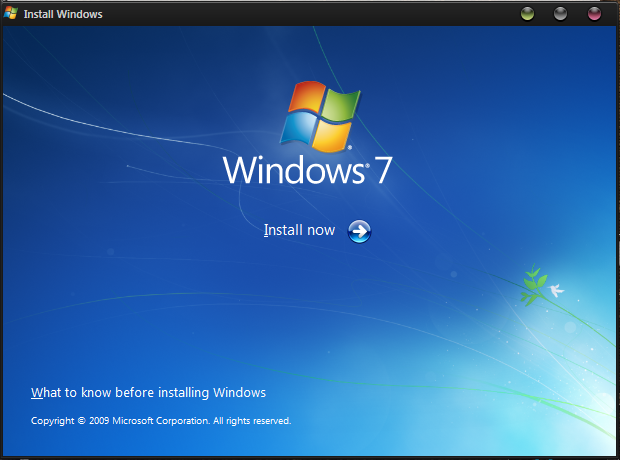
    Install Windows 7
    Re-Formatting is the best solution.

    Say Good-Bye to Junkware

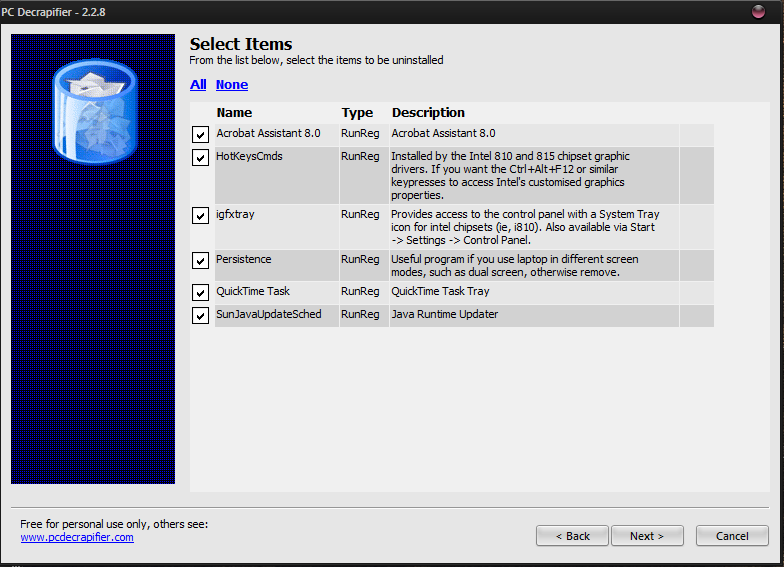
    So formatting doesn't quite suite your style, eh? Not to worry, you can still get a stable PC. When you buy a new PC, the OEM Manufacturer installs some software as part of the factory settings. These software usually include Antivirus trials, some basic functionality tools and blah, blah, blah. Often, these tools mess up your computer and affect its performance. These useless software can be removed with a tiny tool called "PC-Decrapfier". This software automates the process of cleaning-up the messy software on your computer. If you don't know as to what to uninstall, you can consult a techie friend. You can download PC-Decrapifier using the link below.Download PC-Decrapifier

    PC-Decrapifier
    Blow away the "Junkware"

    Install an Antivirus

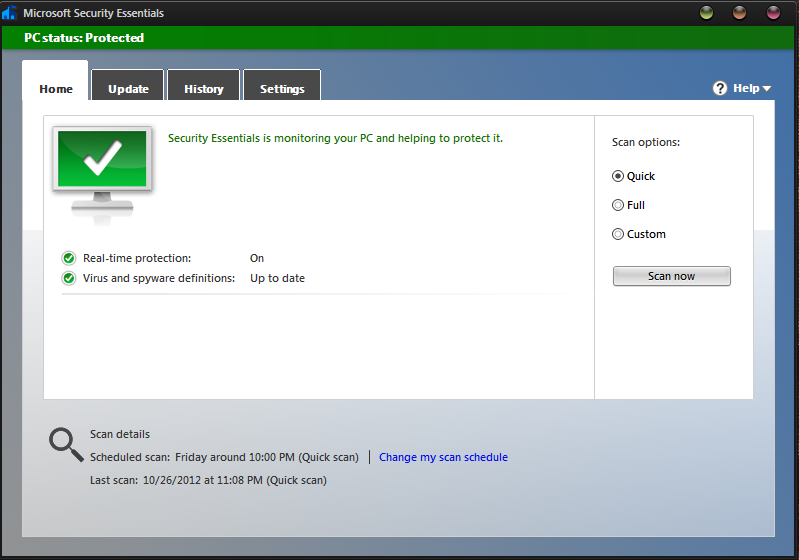
    At a particular stage, its likely that your PC could be messed up by nasty Viruses. So as "Prevention is better than cure", an Antivirus suite is a must for every system. An antivirus suite protects your PC from viruses, worms, key-loggers, trojans, etc. You don't need to spend your bucks to get Real-Time protection, freeware antiviruses will equally do you good.
    An Antivirus is sometimes all you need
    Antivirus Suites Protect Your PC

    Update Necessary Drivers

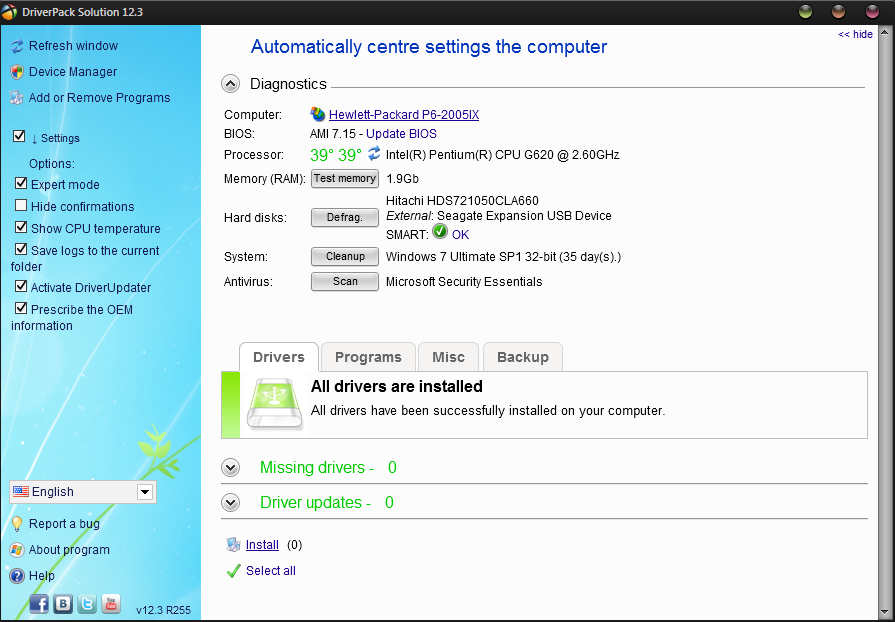
    Drivers ensure the smooth running of your PC's hardware. Your PC vendor should have installed the important ones already, but in case you have formatted it or they have become out-date, you can easily update/install them with a tool called Driver-pack Solutions. Its completely free, and comes in 2 versions, the Lite & Regular one. The lite one just displays you the missing/out-dated drivers and offers you to download them from the web. The regular one is the full pack of 3 gigs and is used for offline maintenance.
    Update your PC's Driver easily
    Updating The Drivers Is Crucial

    Boost Up PC Performance

    Due to a load of programs installed, 100s of unnecessary start-ups enabled, messy registry, your PC is sure to slow down. But don't panic, my dear friends as we have the solution. Some free optimizer tools quite efficiently do the trick. These programs boost your PC to its heck. They maintain your registry, tidy-up your files, de-fragment your drives and ensure a 100% performance mark.
    Piriform CCleaner: Download Link
    Advanced System Care Free: Download Link

    Advance System Care Pro
    Optimize You PC To Its Heck

    Prevent Hackers Through A Firewall

    You may never know, when a hacker's bad eye is on to your innocent PC. To prevent this, firewalls are a must. If you are normal PC-User, then the default windows firewall will do you good. But if you work with sensitive data, use them. A firewall is like a barrier between you and the web which prevents unauthorized access to your PC.
    Comodo Firewall: Download Link
    Zone Alarm Free Firewall: Download Link
    Download free firewall
    A Firewall Protects Your Privacy

    Run Un-Safe Apps Sand-Boxed

    Many a times, we are unsure whether to install a app or not. This often leads to unnecessary tension. But don't get confused, You can sandbox them. No, it isn't some geeky tech, it is indeed useful. Sandboxing runs the app in a virtual environment so that it doesn't affect the whole PC. With this, you can run apps carefree!
    Sandboxie: Download Link
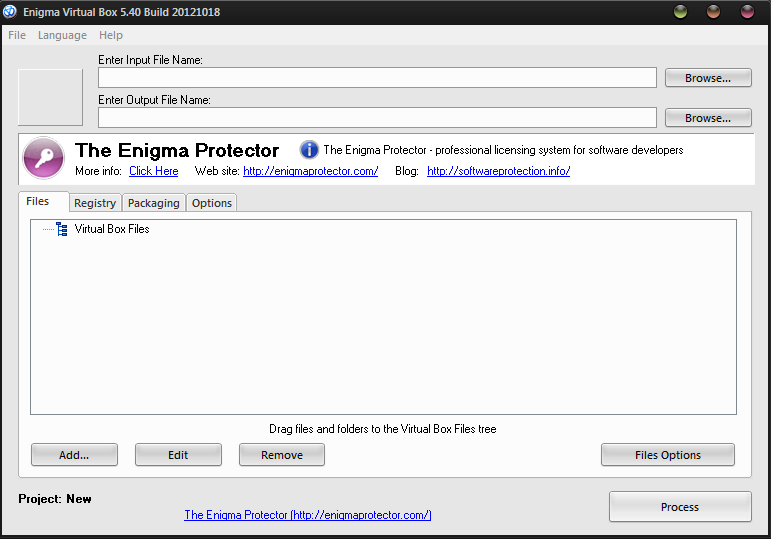
    Enigma VirtualBox: Download Link

    Enigma Sandbox software free download

    Browse Anonymously By Modifying The IP

    Phishing, Hacking, Spamming, etc! All these calamities can anytime attack your PC. These all can easily be avoided by changing your IP. If we change it, it enables us to browse the web safely'n'tension-free.
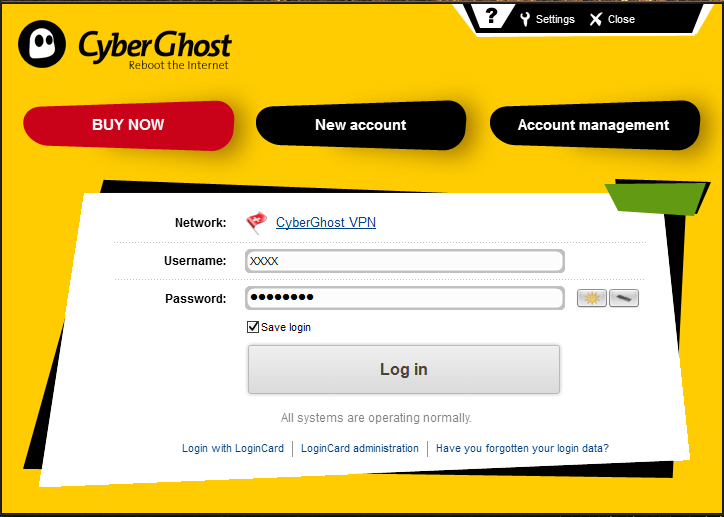
    CyberGhost VPN: Download Link
    Super Hide-IP: Download Link
    Cyberghost VPN download

    Install Some Freebies

    Sometimes, its wiser to install free software rather than big powerhouses like Nero, Microsoft Office, etc. The reason: We never use all the features available in these suites. Freewares are more than sufficient to use and offer most of the features.
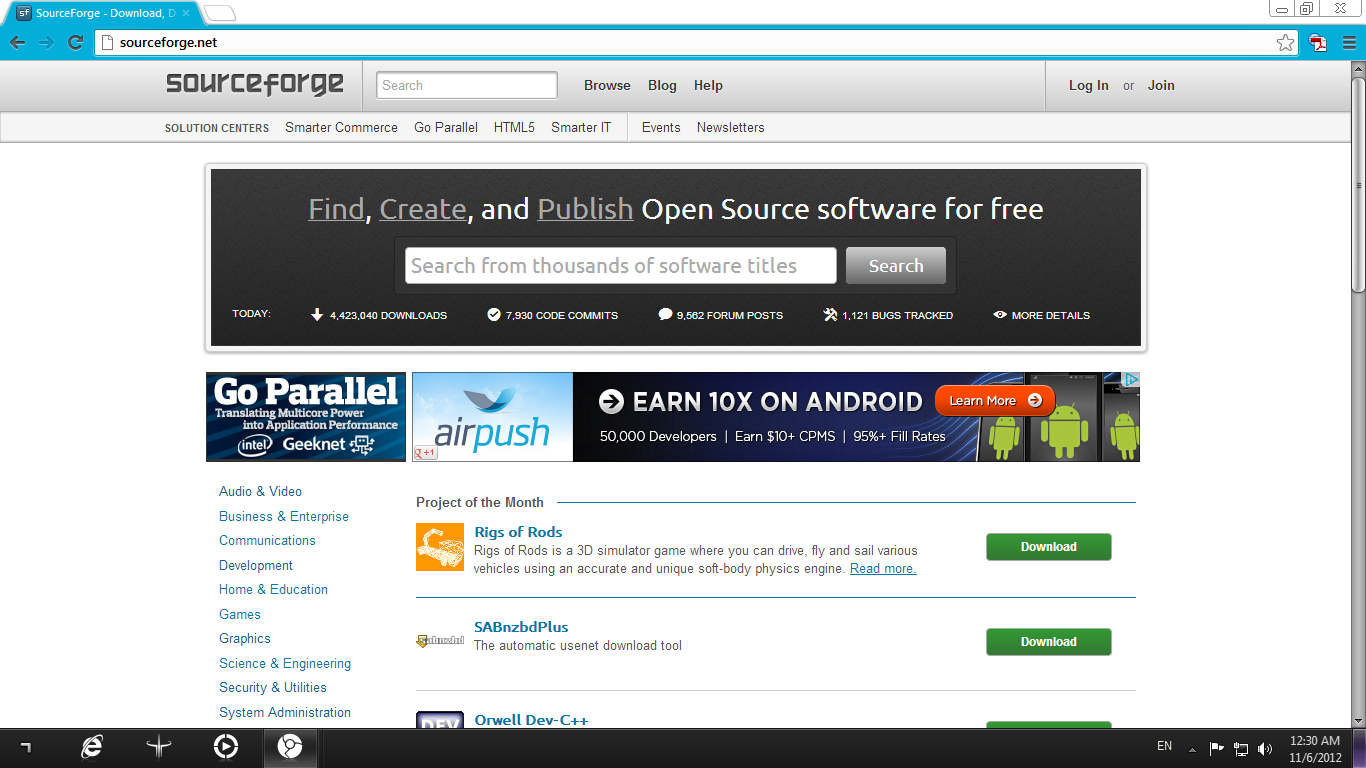
    Source Forge is one of the best collections available on internet and you can browse freewares according to what you need.
    Visit SourceForge
    Sourceforge.com Homepage

    The Conclusion...

    Hope you folks like this tutorial and enjoyed it. Just keep in mind that you don't need to always send your PC to a technician. Sometimes, some simple guids like this are indeed useful :-)