Hide Files and Folders in Android

Hiding files is a known-by-all trick for Windows users. But now we all are familiar with the growing popularity of android phones so we all must know how to hide files and folders on android device.
If you try simply hiding the file in Windows and then copy it onto an android device then the file will still show up on android device because it is a different OS and hence it follows different rules.
My Hood, My Rulz Motherfuckr said Android!

Even if you hide the folder with system properties then it too will show up as usual folder.
So what is the solution for this problem?

How to Hide files on Android Phone

Basically all you need to do is follow this rule.
"Android respects folders and files whose names start with a (.) Dot."

For eg, a usual folder will be like this "Any Stupid Folder" and a hidden folder will be ".Any Stupid Folder"
And the same rule applies to files too. You can disguise your files as system ones just by adding a dot in starting of their names!

So all you need to do is rename the file or folder with a dot starting in the front of its name.

That's it for hiding files and folders but the thing which is yet to be known is how you will access them if they go hidden?

You can enable viewing hidden folders and files in different applications as follows.

Stock Files Manager of Samsung Android Phones

If you have a Samsung Android Phone then you can use the following steps to show and hide hidden files.
Firstly open My Files and then press the options key on your phone. Now tap on Settings.Now tick/untick "Show Hidden Files" as per your needs.


ES File Explorer

If you use ES file explorer then you can follow these steps to show hidden files:
Open ES File Explorer and then press options key on your phone. Now scroll down to the bottom where you will find a button for enabling show hidden files.


If you have other file manager then go to its settings and you will definitely find option for showing hidden files. Now go give it a try!

Sync Files Easily In Single Click

On everyone’s PC there are a lot of files. Some of them are just occupying space but the rest of other important files are so damn important that you forget to copy them to their respective locations and they are gone straight to hell when you perform a clean format of your PC. Some of these are:

1. Save game files of your games which are stored in the underground storage like AppData folder
2. Saved text files and documents stored in My Documents
3. Thousands of Facebook downloaded pics stored in Downloads folder that go unnoticed.

And many more applications that store their templates and other documents in “My Documents\ {App}\Projects

After reading the above few lines you might have remembered the day when you forgot to backup your save game and then after a fresh install, the games screen shows up blank with achievements and completion progress.

Now getting to point, “What if I say, that all the above things that I told you can be done in a single click!”
Its up to you, which way you choose. One is the older method which executes as follows:

1. Select files of specific extension and type by holding control key and then making clicks to mark the files.
2. Selecting one more file that you forgot which just showed up!
3. Bump! You forgot to hold the control key so the process is nullified and again start selecting files
4. Now cut the files and go to the location where you want to paste them , make a folder and then press Ctrl+V
5. Nothing happens, as the computer didn't received the Ctrl+X request because of the $3 keyboard with low response keys so Ctrl+V has nothing to do.
6. Kick the PC hardly and then say “ I will see you later” and that day never came and your files are lost!

And the method that I am gonna tell you is so smart and easy that the only things that you need to do are

1. Tell the program how it should treat files in your PC
2. No need to do anything for few weeks or depending upon your priority for files
3. When you think it is the right time, execute the program again and then execute the operation.
4. Done

How to get started

To automate your file syncing, you need the following software

1. SyncToy: For managing files across two locations
2. Dropbox or Google Drive: For online backup of your tiny important files
3. 15 Minutes or less for setting up the process

Why SyncToy? Because it is an official application from Microsoft and it is easy to use! Now after downloading SyncToy, you need to download any online backup application like Dropbox. This one is recommended only for those who will prefer their files to be present on the web when the whole computer gets burnt into ashes.

Now install all the applications that you downloaded from the above link and run SyncToy. Here is the wizard window that you should see when SyncToy executes successfully.New Folder pair wizard will run automatically.

Creating a folder pair in SyncToy

What is a Folder Pair

This is the main purpose of the application and the motto of the post that you are reading. Folder pair means relating two folders so that changes and creating of data is done symmetrically in another folder. Here another folder can be a folder in your pen drive, a cloud storage folder as I told you to install Dropbox or just a folder in your hard drive other than the C: Drive so that your files are safe.

So in folder one, specify the folder “Downloads”, Say. Now in the other folder in the right side, specify the folder in which you want the backup of previous folder. Let it be a folder in your pen drive, hard disk or cloud storage, as per your needs. Now after specifying both folders, click on next

Now a confusion might arise between the three modes from which one is to be selected.
Here is a short explanation of each:

1. Synchronize: In this mode both folder will act symmetrical. So changes made like renaming and deletion on either side will effect the other side. Also, files copied to right folder will be sent to left folder as well. So the pairing is two-way.

2. Echo: In this mode files will be copied from left to right only, unlike the synchronize mode. The relation is between the files which are present on the left side with the right side. So this is only one way. Files copied to the right have no effect on the left folder.

3. Contribute: This is similar to Echo mode but the only difference is that files deleted on the left are not deleted from the right folder.

So according to me, the third option is the best for our purpose of backing up. Now click on next and then enter the pairing name. Let it be “backup for downloads”

Now in the left sidebar, you will see your pair name. Now it is time to try our hard work. Just press RUN button and see the action.

Now let us make the real use of the application by organizing right things in the right place. I mean by syncing android apps in different folder and images in other folder. Lets see how this can be done.

For android apps

1. Create a folder pair with all the instructions that we used above
2. Now open the pairing page from SyncToy’s left sidebar
3. Click on Change Options
4. In “Files to Include” field enter “*.apk” Here asterisk wildcard is used to copy all files with .apk extension to the specified location

For Pictures

Follow the same steps as you did for Android apps pairing. Now a question arises, how to select more than one extension?
To do this, you have to specify in the Files to include field, “*.jpg;*.gif;*.png;*.etc” each extension are separated by a ; symbol.

Now create as many pairs you want and then from the right sidebar of SyncToy, select all folder pairs and then click on run all to manage files between two locations at the cost of single click.


This is the end of how-to article, if you face any problem in using SyncToy, feel no shame in asking questions.

Increase Bass Settings To Get Max Bass [Windows]

Speakers with subwoofer
Hello friends, I am back with a new tutorial. I know you all love hearing songs on your PC and I too love this hobby. Some like soft music but some people like me feel that the music is complete after getting the strong bass as expected by our speakers. After finding all settings and experimenting with apps, I am done and I have found the final solution to get the exact, perfect, less distorting and head shaking bass.

All you need is a subwoofer based 2.1 or 5.1 or 69.1 speaker, but make sure you have a subwoofer or else the normal speakers of your laptop will give drunk sound. And yes, if you have good pair of earphones which are supposed to give the same sound effect as expected by speakers, then you can try that too. My settings worked with my 2.1 Speakers and a Nokia earphone. Now get lets start the work. For clearing doubts, I am not just simply gonna show you equalizer settings but much more than that, so keep reading.

For Windows 7 & 8 Users

If you are a Windows 7 or Windows 8 user, then you are lucky as Windows 7 and 8 provides Bass enhancement. Please note, if you have installed Realtek Audio drivers then the setting will be disabled for you, in this case skip to next step. 

Now if you are using default Windows drivers for your speakers, then open Sound settings. To do so, Right click on your speaker icon and select Playback devices.

After that double click your default Audio Device. You default audio device is the one which has a green colored check sign. After clicking on it, you will entire the sound properties.

Now from the top tab, select the Enhancements tab. There you will find bass boost, check this enhancement and select the quantity of dB. The normal one is 6 dB but you can increase it to 9 dB or 12 dB but make sure that you are getting good amount of voice as increasing the base will lower your speakers voice temporarily till the settings are applied. You can trial check all the available settings.
 After switching to higher base levels, you will definitely get a increase in bass for sure.

Now, if you are feeling that you have find the right setting then you can quit this article right now, or if you are feeling that the increase in base is not making the experience complete, then you can switch to default setting and continue reading the article and I will tell you about another method which will give you balanced bass  with more settings and least distortion.

AIMP3 Player, The extreme music tool

Aimp3 music player is the BEST Audio player I have found. yes its just Audio player but it does it works as a Boss and is a full fledged audio player. You should give it a try if you want to enjoy better sound quality. 

As I have said above, it is a full fledged music player, it offers tonnes of settings to complete the experience of music. This time we are talking about bass, so we will only focus on bass. First of all download AIMP3 music player using the link below. Don't worry, its just a 7 MB setup file.


After downloading, install it and open settings. To open AIMP3 settings, just press Ctrl+P and you will get the settings page. In Playback settings, select Sound Effects
From the MOD option, select the Surround to Surround Mode 2. 

Now let us go to the final settings page, to get there click on DSP Manger button from the bottom. 
In the second row, second column, you will find bass level, slide the bass level to around 60%, it will be enough to give the effect. As we all know, increasing bass will distort the sound, so we need to maintain an equilibrium within base and music, to do so we will normalize the bass automatically whenever the song has ups and downs.

AIMP3 has a setting for the same, from the same page where you changed the bass, you will find the option for normalizing volume, from there select the second option which says, Normalize by Amplitude and close the settings page. 

Now let us configure the final setting, the old and widely used Equalizer. to open the equalizer, open the main music player window and select the bottom right button (Shown by Red Box), it will slide open equalizer window. Now make the settings as shown in the image below.

Equalizer-Settings-AIMP3

After opening the equalizer, turn on the equalizer, by clicking on the button which is marked as 1 in the image. To check that the equalizer is on and running, the button will show a light of the color of theme.
Now the second slider is of bass level (again), to get heaviest bass slide the button to bottom or top most and to get medium level bass, let it be in center.

After all this experiment I hope you get the bass you expected from the tutorial. 
Now allow me for the next post. If you face any problem in configuring any of the settings, please comment below and I will reply as soon as possible.

A Small Test

To verify and device's performance, we all know that a test is a good method. So I suggest you to play a songs called Harlem Shake, its the most bass preferred song and I tried it on my speakers, it just vibrated the Computer table and it was a win feeling. Ahha, to try this song you need to download this song in a audio format obviously.

Enable .Net Framework on Windows 8

Dot Net Framework is a programming tool and used by many developers. Some programs even use it to a small extent but fail to execute when the .Net framework redistributable is missing on that PC. Some of my favorite programs that use it are GTA 4, Freemake video converter and many more. I said many more because I install this software as soon as I install Windows as I know this is a useful and well needed software, so those applications which need it get it without asking it from me.

Now coming to point, everyone knows that the latest Microsoft venture is Windows 8.
I liked it, you hated it and your friend liked it, so you, yes you can't alone determine that Windows 8 is a fail.
Some months back, Windows has been frequently launching beta versions of Windows 8 and they all, even the Pro version activated has a same problem and that it.

Install Dot Net Framework on Windows 8

This error dialog box pops up whenever you install a program that requires .Net Framework installed in order to run properly and without errors. But the tragedy is, you get the same message while installing the .Net framework itself from your own side. Windows team is so "Besharam" that they could,t fixed it even after launching newer versions of Windows back-to-back.

So how can this be fixed?

This is indeed a very good question if you are reading this post, I have got a working method to Install .Net Framework on Windows 8 Offline and Easily

So, to get started the things you need are; A Windows 8 Installation disc and Admin privileges

First of all locate Windows 8 Setup files path. If you have DVD, you can insert it in the DVD Drive, if you have a Windows Setup Image files, you can mount it and if you have the whole content of Windows 8 DVD copied to your Hard Disk, then it will work too. And if you have nothing from the things I asked above, then you may gracefully close this tab :-)

Let us consider, you have Windows 8 DVD inserted in your DVD drive, which is labeled as G:\ then you can go ahead and read further steps.

Running CMD with admin privileges
Hit the start page and type CMD. Now right click on it and select "Run as Administrator" from the bottom menu bar.

Search CMD in Start Page


Run CMD as Admin

When the CMD Window opens, run the following command
dism.exe /online /enable-feature /featurename:NetFX3 /Source:J:\sources\sxs
Things to note:
  • Replace J:\ with your Windows 8 setup DVD or files folder
  • You can copy above code but can't paste it using Ctrl+V Shortcut, so to paste it, use Right Click from your mouse inside CMD Window and click on Paste. :-)
  • Installing .Net Framework will take upto 5-6 minutes and the progress bar is of rolling kind, it first fills up like hell and then stops at 66% and after two minutes it then again jumps to 99.8% and again after a break of two minutes it finally completes.
Done, when the execution completes, your machine should have been running .Net framework services.
If you face any problem, you are welcome to ask me and I will try my best to help you shortly.

Play PS2 Games on PC using PCSX2

Play Play Station 2 games on PC
Image Credits
Playing hardcore games is every PC users' dream and I have not seen anyone who hates games at all. But is some conditions a gamer might hate a game because of a single reason and that is platform racism. Superb RPG games like God Of War and others are not available for PC platform natively but you can play any Play Station 2 game on your PC if you have a good PC. This has been made possible by a small application named PCSX2 which lets you play Play Station games on your PC as if you are playing them on Play Station. I have found many people who eagerly want to play their favorite Play station game on PC but they end with some kinda errors with their PCSX2. Keeping it mind I have also created a demo video to how you how to configure PCSX2 correctly so that you can start playing your favorite game. Here are the things that you need for playing a Play station game:

Requirements

  1. A Play Station game disc image file ,i.e., God of War.iso or Game.nrg
    Here Godofwar.Iso is the image file of God of war game and .Iso is its format. You must have a Play station game image in order to play it, seems legit. If you don't have one, then you can get it from the Kick or Bay's market.
  2. PCSX2 application
    You need to download the version according to your OS. Fortunately the developers are working hard for all three platforms: Mac OSX, Windows and Linux
  3. Play Station 2 BIOS file
    This one is tricky and you need to extract bios from a real physical play Station 2. Its a small file of 4 MB that is stored in your Play Station and can be extracted using the tool provided by the PCSX2 team. They are asking for the BIOS file as it is needed to run emulator and it also indicates that you are  a genuine and legit player.
  4. Extras: Your system must have all necessary software installed like Direct X must be updated, VGA driver must be updated and your system must be running with any kinda error.
So all we have to do is make this happen:

God Of War 2 on PC gameplay

Starting from scratch

Go to your desktop or any comfortable location and create a new folder named "Project PlayStation 2". In that folder make four folders as follows  : 
  1. Game: In this folder copy a game image file like God of war.iso 
  2. Emulator: In this folder copy the emulator program files.
  3. BIOS: In the third, copy the BIOS file. We will later use this file
  4. Extras: MSVCP100.dll file This file is needed as in most cases the emulator fails to run because of absence of this file.
Download Link for all of above files

Next step


Now you have four folders which are ready to be used for making your game-play possible. So first of all go to emulator folder and extract the file "PCSX2 Emulator-www.Ptmaroct.com.zip" and then run "pcsx2-r5350.exe" from the extracted folder.

WTF an error hits the screen!!

If you get an error saying that MSVCP100.dll is missing from your computer, then you need to download this file and copy it inside the emulator folder from where you ran the main exe file.

And again if the same error hits the screen with the dll file changed to, MSVCPR100.dll, no problem, you can fix the issue again using the same method, just download the file and put it into root folder.

Now the emulator should execute without any problem. Once it opens, keep hitting the next button till the last step and when you are at the last step, you need do the BIOS fie copying.

Now again go to the first time configuration window and click on Refresh List. The BIOS file that you just copied shall be visible in the list. Select the file and click on Finish.

Now you have finished configuring it and a new blue window with a program log windows should appear.

Ah Ah wait, the configuring is not over yet, you still have one task to do and that is configure the keypad settings. Can you play the game without telling it which button does what?

To configure keyboard or gamepad settings:
  • Click on configure and then select  Controllers (PAD) and then Plugin settings.
  • From the top of the window, click on Pad 1
  • Now you will see many buttons' names. To configure an action of that button, first click on it from the window and then press the respective key from keyboard or gamepad. For eg. First click on Square and then press "S" from keyboard. Now S will serve as the square button for the emulator. 
  • You need to configure these buttons: X O [] ∆, D Pad, Select Start and L1 L2 and R1 R2 for an optimal gameplay.
  • Now the final step is to load the game. Click on "System" from the menu bar and click on Boot CDVD "Fast" and then tell him where is the game located. You shall start playing now.
    The reason I told you to choose fast is that if you choose "Full" then it will show Play Station Boot Screen, Select your language and asks you to set time. You can skip this using the fast boot method.

Video Tutorial to Play Playstation2 Game

As I promised you that I will add a video recording demonstrating all the above steps involved, but the video is under processing and still to be uploaded. the video will be ready within 1 day. So keep visiting to check if I have added it.

Frequently Asked Questions 

Here are the answers of the top questions that any user might face meanwhile using PCSX2:

Why the hell the game is running too slow!

This is the most common question among most PCSX2 users. There are many reason. Here is my explanation for the cause. PCSX2 creates a virtual play station 2 based environment to make gameplay possible. Whenever we  use two different environments simultaneously, we are ought to feel the lag as a simple Home PC isn't meant to do these kind of hard core tasks. Moreover, a perfect emulations is only possible on a good config PC. For Example: If a game made for PC gives you 100% performance, then the same game made for PS2 running on PC will give you only 70% of performance. This is because of high usage of CPU, GFX and RAM.
Jokes apart, you can turbo charge your gameplay using a simple hack. If gameplay in your PC is now of 15 to 20 FPS (Frames Per Second ), Then you can boost your gameplay to 50-55 FPS using a simple hack. Here are the instructions to boost your gameplay:
  1. From PCSX2 window, run any game and during gameplay, Press the F4 key. This will disable frame limiting and thus making it possible to achieve higher FPS.
  2. Now go to PCSX2 Window and then click on Config from the menu bar. Now select Emulation settings. In the window just opened, click on Speed Hacks from the top. Now from this window, enable everything, move the scroller to rightmost and then click on OK.
    DO NOT enable the setting named " MTVU (Multi Threaded Micro VU1) " if you do not have a Quad Core CPU. Even if you have a quad core CPU, leave this setting or you might end up in trouble.
Now run the game and you must feel a increase in FPS, enjoy you game :-)

The emulator can't find MSVCP100.dll 

This error is very common even if your PC has C++ run-time installed. To fix this error, just download this file and place it in the emulator folder along with all core files. 

Author's Note

I hope you utilized my tutorial and you are able to play Play Station 2 game yourself as for now. You are always welcome to ask me anything if you face any error, or if you have any suggestion for me or just a simple vote of thanks. Good bye for now and keep visiting my blog :-)

Download Hindi Typing Software by Google

Computer is now used in every field of business, private or government. It handles various tasks like managing database and connecting with customers. Now if you are Indian, then you know how much Hindi is important for us if we want to contact with people. Though English is quickly replacing Hindi as our language but we can't forget that Hindi is our National Language.

Now if you ask anyone to type a small paragraph of 100 words in PC or probably in a good mobile, it will take him or her hardly 5 minutes or so. Now ask the same person to type the same para in "Hindi". Now this time he might run away as typing in Hindi is not a joke.

Its completely true that typing in Hindi is painful, like you must first install Hindi font, practice the font with your native English keyboard and then your typing speed will increase slowly. To help you with this situation, your very old Friend Google has something to offer you with. I am talking about Google input tools which make typing in regional languages damn easier that you can't even imagine.

I have tested this tool and I am very much impressed with its accuracy and ease of use. Lets have a look on Google Input Tools' features:
  • Available for 22 different languages including most Indian languages like Hindi, Bengali, Oriya, Marathi other. Also includes languages like Greek, Russian, Persian and Sanskrit too.
  • Works completely without Internet connection needed, though Internet connection is needed for only first time install and the you can work it online and offline too.
  • Gives you auto-complete suggestions as you type for faster typing.
  • मजे आ जायेंगे उसे करने में 
  • Typing is funny and fast so that you can finish your work easily and quickly.
  • Customization s are available for your text typed in regional font.
Check out official video by Google about their useful and awesome service:


How to Install Google Input Tools for Windows 

Google input tools can be easily installed in any Windows based PC running Windows XP or later. The good thing about the setup is that you can, infact you need to select languages manually to your setup that will be downloaded later by the setup itself. To start with, visit the Google Input tools webpage for PC.

Download Google Input Tools for PC

After opening this page, tick ( ✔ ) your needed languages, in this post I am talking about Hindi, so tick Hindi. If you need any other language, then select these from the list.
Now also check, I agree the T&C and then hit the Download button.
Download Hindi Typing Software by Google

Then you will get a small executable named " Input Tools Setup.exe " which serves as a downloader for your selected languages. The setup requires Internet Connectivity while installation and once it gets installed, you can start using it even offline ,i.e., even when you are not connected to Internet.

Now question comes, How can I change the typing laguage as the PC is still typing text in English (or your Windows Language)?
You need to switch the Language from English to Hindi from Taskbar. To change typing language, Click on the EN symbol near system tray as shown in figure and select Hindi (India)
Change typing language in Windows 7
Now start typing what you need to type. For example you want to type मेरा नाम अनुज है , then type " mera naam anuj hai". Its that easy and its done very quickly. Thanks to Google

This program works in almost every place in Windows like web browsers, text editing softwares and many more places. So enjoy this useful tool and make sure that you share this tool with everyone you think will need it.

Thanks for reading and have a good day!
Regards,
Anuj Sharma

Repair Corrupted Flash Drive Easily Using HP Tool

Every PC geek gets to check numerous applications to test them and share them with friends. Some applications work like charm and some applications damage your PC’s hardware like a charm, which is a true story. I have seen many times that an application can corrupt your storage devices most probably like USB flash drives, memory cards. Not only PC does this bad work but some high end mobile viruses can also put your memory cards to its knees. And they tame it too bad that you can't even format it back to its original situation because of these viruses.


So how do you deal with these situations? Do you simply throw your corrupted pen drive into bin or just try thousand times to re format it and check if that worked?

Well, if now your pen drive or memory card gets corrupted, then you can use a very light weight and portable tool to fix it. The tool is made by HP, a well known computer company to fix corrupted memory cards and other flash storage drives except hard drive errors.

Repair Corrupted USB Drives

In my case, I got some more weird problem in which my 8 GB Kingston pen drive got corrupted and showed as 2 GB :-| in My Computer folder and I tried to reformat the drive many times with the Default Windows Format tool but it didn’t helped. Then finally I ran the useful tool and it restored my pen drive to its original state. This tiny portable tool is a must have application in every PC user's collection.
Also make sure that you run this tool as Admin while using Windows Vista/7/8
The main feature of this tool is hat it uses different formatting method to repair drive which is not used by Windows’ default tool. So, in most cases when the default Windows tool fails, it wins for sure.

Bonus:
This tool also lets you format your flash drive as NTFS format too. This feature is useful for Windows XP users only as NTFS formatting is not availabe by default in Windows XP.
Now question arises, why some one will need to format his pen drive with NTFS format?
Well, I want to share with you a bug, that is in FAT32 format, you can not copy a single file which is larger than 3 GB in size. Let me elaborate and break the confusion; If you copy a single file like a game ISO image whose size is 4.67 GB, then you will get an error for sure but if the flash drive is formatted with NTFS format, then you can easily send huge files without any error.
one more benefit of NTFS formatting is that some good quality pen drives when formatted with NTFS format result in increase of write rate, i.e., upto 80 MBPS for first few seconds after starting the copying and then reverts to original speed. Not bad though :-)

Download HP USB Repair Tool

Disclaimer: This tool does not guarantees repair for flash drives or memory cards which got corrupted due to any kind of physical damage. This tool will help you repair flash drives which got corrupted due to incorrect partitioning via any software. So please make sure that your device got corrupted due to incorrect partitioning; before using this tool.

Make Your Own Android Web Browser

Make Android Web Browser

Having something made specially for you is what you actually need. So today, I have something made specially for you. And its nothing other than your own Android Web Browser. You can customize the way you want and its ready to surf the web. So what would you like to change in your own web browser? Of course the design and looks, and not the coding as you don't know a single thing about the coding.

The things that you need for creating your very own Android web browser are:
  • Internet connection
  • Facebook account
  • And an android phone for testing your web browser. You can test it on your Android Emulator too.
So lets get started and quickly create a web browser for your android phone. Your Web Browser will be powered by Maxthon Web browser engine. The project is made possible just because of Maxthon Team.

Create your Own Android Web Browser

Visit the Maxthon Make Your Browser Link. Here you will find all the things that you need to create your own android web browser. Your have options to change the following things: Browser name, Its icon in the appdrawer, Set default homepage, Choose theme and Splash Screen.

So when you will open the above link, you will find a page that will help you customize your web browser with many things. Lets have a look:

Your Browser's Name

Input the name of your browser. It can be anything like My Web Browser or anything like that. Though you have only 14 characters to use for your browser name.

Your Browser's Icon

You can upload an icon for your web browser. The file size shall be lass than 50 KB and the required resolution for the icon file ( jpg or png ) shall be of 72x72 pixels. To create transparent and better looking icons, you might use Photoshop. Here below I have attached a good looking "T" icon which is transparent and you can try it as your browser's icon.
T Logo Icon

Set your Browser's Homepage

You can set your browser's default homepage. It can be anything like Google.com or your Blog URL or even your your Email account. This homepage can be changed later but it will be used as default for every time your browser is installed.

Select a Theme

You have option to choose from 11 different themes fro your web browser. My Favorites are "Black Theme" and "Blue Theme"

Upload Your Browser's Splash Screen

A splash screen is the first image/animation that you see after launching the application. So this is a useful option for customizing your web browser.You can upload a splash screen for your android browser with the following specifications.
File Type: Jpeg or PNG
Res: 480x800
File Size: Less than 500KB
I have attached a Splash Screen that you can use if you want.

Sample splash screen for android web browser

And finally, enter your email address to get your web browser's download link.
Your web browser will be saved in your Maxthon account which can be accessed by logging in through Facebook. After you have logged in, your previously created web browsers can be downloaded from your Maxthon Account

P.S. If you want to try my created web browser, you can follow this link.
Download Technoholics Web Browser

How To Reset Windows 7/8 Password

Reset Windows 7 Password
If the above case happens with you, what will you do? Of course Install a fresh copy of Windows. But if the same happens in a PC that you don't wanna mess with, then you can try reading this post and find a cool and little solution.
Are you using Windows 7 in you PC? Then you must be aware that you can add password to your user account. It increases your computer's security and restricts unprivileged person to access your PC up to some extent.

A Windows password is not secure and can be easily changed by normal PC user within minutes. Its not secure but still you must apply it to your PC. Changing Windows password is damn easy and every single hacker and computer geek knows how to do it. Since all people on earth are not hackers, but still one must know how to reset Windows password in case you forgot your PC’s password and you need to use your PC urgently.


Windows 7 itself provides legit options to reset forgotten user password such as password reset disk, by using this feature, Windows 7 saves some credentials in your pen drive, so that whenever you forget our Windows password, you just need to insert that specific pen drive and then Windows will unlock. But this feature is not useful in practical life as in order to use this feature, you must have opted this feature before you forget your Windows password. And you can’t predict when you will forget the password of your Windows account, Right.

Now here I share about method that actually works and can help you reset your Windows PC’s password.
So what are we going to actually do? Its very simple, we will use the “net user username password” command prompt trick to reset Windows password.

Lets perform a practical use of this trick so that you will understand clearly what I am talking about. Suppose that your friend has added password to his Windows account named “Anuj” and his PC is booted up as he had entered the password and left his PC turned on. So now you can use his PC as usual, now if you want to change his account password, then you just need to follow these easy cheesy steps:

Firstly, open Command Promt ,i.e., Goto Run, type CMD and hit enter. Now you need to enter the following thing and hit enter:
Net user anuj newpassword
Here net user is a CMD command and anuj is username and newpassword is the new password.
Change Windows 7 Password using CMD


So you just changed his PC’s password without even knowing the older one.
Source of error: The only and main source of error is that you might not be having administrator previliges, which are required to perform the above action. That’s why I asked you to use his PC when he has logged in to his PC using the password. Or else, continue reading this article if you want to know how to reset Windows password without admin previlages, and without logging into the account. See the image below to open Command prompt as Admin.
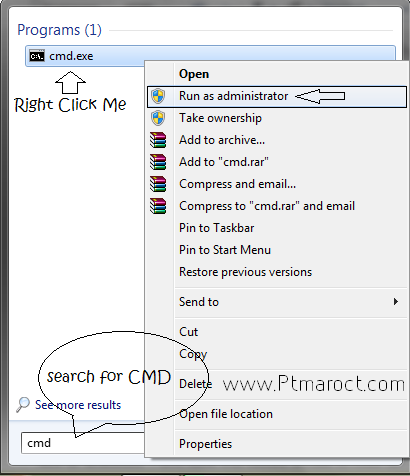
Open Command as Admin

So now we start the article: Changing Forgotten Windows 7 Password
  
In the above trick I showed you how you can change Windows password without knowing the current one. But this trick works only when you are having administrator access over the PC. What will you do when even you cant login to your PC when you forget the password? Well, In that case a bug in Windows 7 will help you regain access to your PC. So how does the new trick works?

To change the password we used command prompt, but question arises how can we open Command Promt without logging into our PC?

You might know that when you hit the “Shift” Key five times or more, a dialog box apears that says you to turn on sticky keys. We will use this trick to recover lost Windows password. The executible of Sticky Keys is located here: "C:\Windows\System32\sethc.exe" Where C:\ represents your Windows partition.
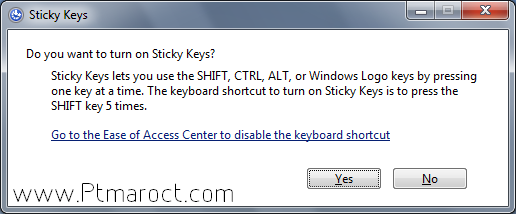
 Sticky Keys
 
The good thing about Sticky Keys is that they can be accessed even at the login screen which means them perfect for the plan. So the plan isto replace the “Sticky” keys shortcut to launch command prompt, and then finally change the password using the Net User username newpassword” command.
So now new problem arises, How can one person disguise Command prompt inside Sticky keys exe file. Well, for that thing I am here and I will show you how to make it in action.

To start the mission, you need a Windows 7 Installation Disc.
Please insert the disc in your Disc drive and Boot from it. When the following screen appears, Press Shift+ F10.
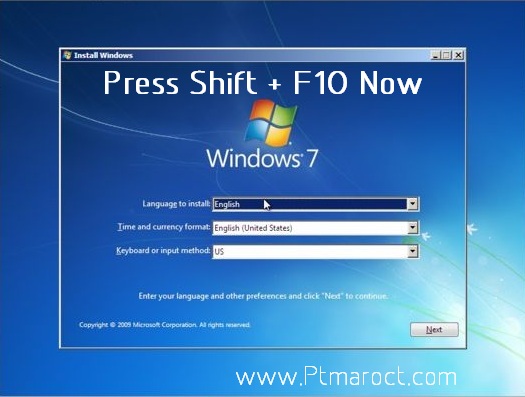
 
Open CMD during Windows setup 

Yes, It’s a shortcut key for launching Command prompt with admin access during Windows setup. Now after pressing Shift+F10 key, you will soon see a command prompt. On opening, command prompt, it has DVD drive selected as default drive which is indicated by X:\

Now, you need to find out which drive is acting as Windows installation drive. To find out your Windows installation drive in which the Windows has been already installed, Just follow the steps below:

1. In CMD, Type C: and hit enter
2. Now type DIR and hit enter
If you find the following directories (PerfLogs, Program Files, Windows, Users), then head to step 4
3. And if you are not able to find these four directories, then use step #1 for drives D: E: F: and so on until you find the correct drive. The reason is that is some cases, the C:/ Drive is reserved for Boot loader and also known as “Reserved Memory” partition. So finding the correct Windows installation partition is must.
4. After knowing the correct Windows installation partition, its time to perform the tricky part.
Now we know the drive where Windows 7 is installed. Now we will replace the Sethc.exe file (Sticky Keys launcher) with CMD.exe (Command Prompt). But first we need to make a backup of the original Sethc.exe file. To do so, run the enter the following command in CMD.
Copy C:\Windows\system32\sethc.exe C:\
Here C:\ Drive is the drive in which Windows has been installed. This will make the backup of sethc.exe in C:\ which we will replace later.
Now run the following command
Copy C:\Windows\System32\CMD.exe C:\Windows\System32\sethc.exe
You will be asked for confrimation, when you enter the above command. To confirm type Y and press Enter.
Now you have disguised Sethc.exe with Cmd.exe, So without wasting any time, just restart your PC and when the login screen appears, Press the Shift Key Five times
Now command prompt will appear and you will see it instead of the Sticky Keys window. So now perform the following Command:
Net User Username Newpassword
Here Username is the name of account of which the password you want to change and Newpassword is the password that you want to set.
After sending the above command, you can finally Login to your PC using the Newpassword and you made it to the PC.

SO here are the things that you did in the last 15 minutes or less:
Inserted Windows 7 Setup DVD
Opened Command Prompt Using Shift+F10 Key
Processed the following commands:
1.       Copy C:\Windows\System32\Sethc.exe C:\
2.       Copy C:\Windows\System32\Cmd.exe C:\Windows\System32\sethc.exe
3.       Restarted PC and at Login screen pressed Shift key Five Times
4.       Sent the following command
“       Net User Username Newpassword
5.       You won and successfully resetted the Windows password :-)

Restoring the original Sethc.exe File

As we have replaced the default system file as cmd executible, we need to place it back to its own place as it is necessary file of system. Amd you don’t wanna get into trouble because of the hack you have done. So to replace the disguised Sethc.exe with original system’s Sethc.exe, follow these steps:
1.       Insert Windows 7 Setup DVD and Boot through it.
2.       When it starts completely, Press Shift+F10 and enter the following command:
Copy C:\Sethc.exe C:\Windows\System32\sethc.exe
It will ask for confirmation, just press Y and Hit the Enter Key.
Now Your PC is back to its original start and should be working fine too. Now all you need to do is share your experiences and feedback with me and ask for any help that you need.
And Don’t forget to share this post and subscribe to Our Blog’s Newsletter.
Have a good day and safe journey to kitchen :-)

Editor’s Note

Today I taught you a new method of resetting forgotten Windows password which you can use to recover your lost Windows account and login to your PC. If you are thinking why I didn’t mentioned tools such as Ophcrack and Password Reset Disk. Well password Reset Disk is useless and makes no sense at all. And Coming to Ophcrack, its has two disadvanatges, which are:
1. Ophcrack requires a huge 600 MB download and also you need DVD or atleast USB flash drive to make it Run.
2. And the main use of ophcrack is for finding Windows password, and the worse part of it is that Ophcrack uses dictionary attack to find Windows password, which does not guarantee 100% recovery rate or even in 50% cases, ohcrack fails to find the password and you are left with one option: Follow this tutorial.