Enable .Net Framework on Windows 8

Dot Net Framework is a programming tool and used by many developers. Some programs even use it to a small extent but fail to execute when the .Net framework redistributable is missing on that PC. Some of my favorite programs that use it are GTA 4, Freemake video converter and many more. I said many more because I install this software as soon as I install Windows as I know this is a useful and well needed software, so those applications which need it get it without asking it from me.

Now coming to point, everyone knows that the latest Microsoft venture is Windows 8.
I liked it, you hated it and your friend liked it, so you, yes you can't alone determine that Windows 8 is a fail.
Some months back, Windows has been frequently launching beta versions of Windows 8 and they all, even the Pro version activated has a same problem and that it.

Install Dot Net Framework on Windows 8

This error dialog box pops up whenever you install a program that requires .Net Framework installed in order to run properly and without errors. But the tragedy is, you get the same message while installing the .Net framework itself from your own side. Windows team is so "Besharam" that they could,t fixed it even after launching newer versions of Windows back-to-back.

So how can this be fixed?

This is indeed a very good question if you are reading this post, I have got a working method to Install .Net Framework on Windows 8 Offline and Easily

So, to get started the things you need are; A Windows 8 Installation disc and Admin privileges

First of all locate Windows 8 Setup files path. If you have DVD, you can insert it in the DVD Drive, if you have a Windows Setup Image files, you can mount it and if you have the whole content of Windows 8 DVD copied to your Hard Disk, then it will work too. And if you have nothing from the things I asked above, then you may gracefully close this tab :-)

Let us consider, you have Windows 8 DVD inserted in your DVD drive, which is labeled as G:\ then you can go ahead and read further steps.

Running CMD with admin privileges
Hit the start page and type CMD. Now right click on it and select "Run as Administrator" from the bottom menu bar.

Search CMD in Start Page


Run CMD as Admin

When the CMD Window opens, run the following command
dism.exe /online /enable-feature /featurename:NetFX3 /Source:J:\sources\sxs
Things to note:
  • Replace J:\ with your Windows 8 setup DVD or files folder
  • You can copy above code but can't paste it using Ctrl+V Shortcut, so to paste it, use Right Click from your mouse inside CMD Window and click on Paste. :-)
  • Installing .Net Framework will take upto 5-6 minutes and the progress bar is of rolling kind, it first fills up like hell and then stops at 66% and after two minutes it then again jumps to 99.8% and again after a break of two minutes it finally completes.
Done, when the execution completes, your machine should have been running .Net framework services.
If you face any problem, you are welcome to ask me and I will try my best to help you shortly.

Complete Guide To Boost Your New Windows PC

Fire-up your new Windows PC
So, this weekend, you've bought a new Windows-PC? Hey that's cool! But wait. That chunk needs some tweaks before you completely switch it on. Below is an easy tutorial to fire up your PC for better performance and stability:-
    ...So, you didn't close the tab? Very good that you kept reading.

Format It

That PC of your's could be bloated with 1000$ worth of crappy "Trialware" and junk software. The best solution to this problem is to do a complete RE-FORMAT. If you really want a stable PC, then there's no other option like this. Formatting empties up your Windows partition and re-creates it from scratch. This way, you come Back-To-Square-1. But if this doesn't suit you wallet, you can move to step-2 without any prob.

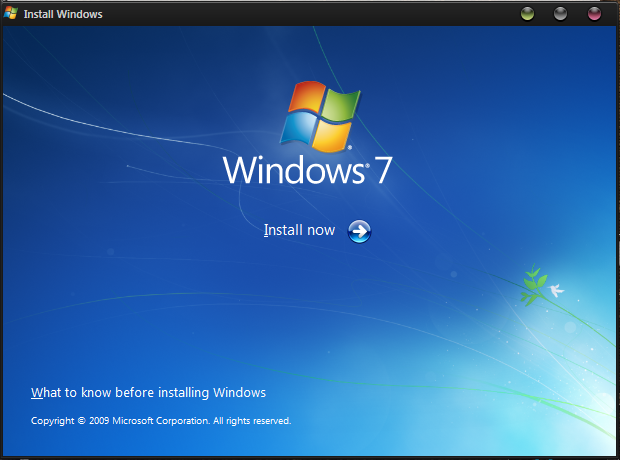
Install Windows 7
Re-Formatting is the best solution.

Say Good-Bye to Junkware

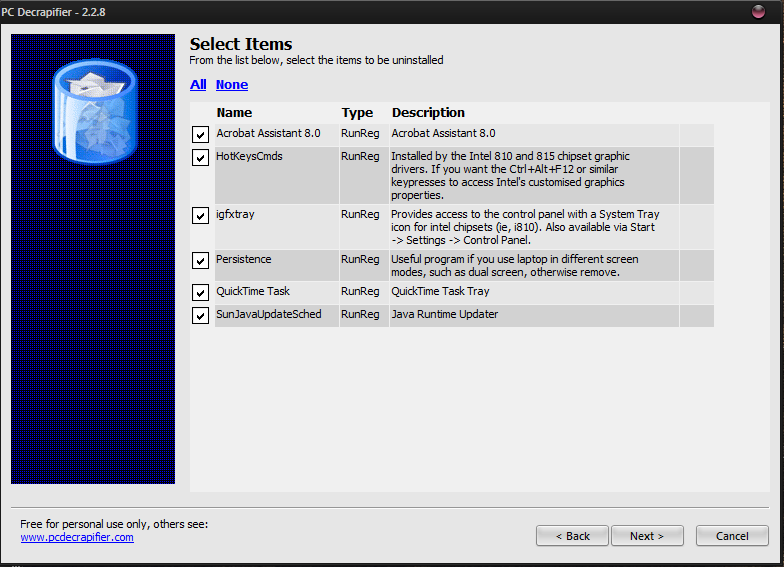
So formatting doesn't quite suite your style, eh? Not to worry, you can still get a stable PC. When you buy a new PC, the OEM Manufacturer installs some software as part of the factory settings. These software usually include Antivirus trials, some basic functionality tools and blah, blah, blah. Often, these tools mess up your computer and affect its performance. These useless software can be removed with a tiny tool called "PC-Decrapfier". This software automates the process of cleaning-up the messy software on your computer. If you don't know as to what to uninstall, you can consult a techie friend. You can download PC-Decrapifier using the link below.Download PC-Decrapifier

PC-Decrapifier
Blow away the "Junkware"

Install an Antivirus

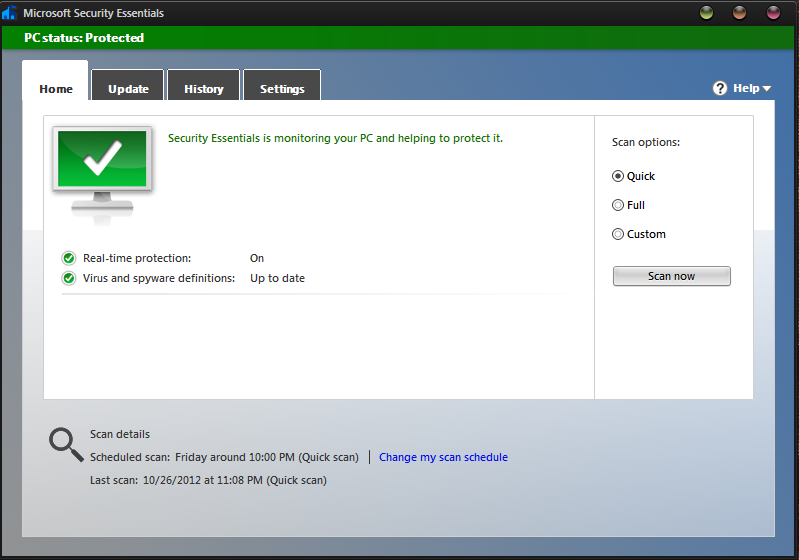
At a particular stage, its likely that your PC could be messed up by nasty Viruses. So as "Prevention is better than cure", an Antivirus suite is a must for every system. An antivirus suite protects your PC from viruses, worms, key-loggers, trojans, etc. You don't need to spend your bucks to get Real-Time protection, freeware antiviruses will equally do you good.
An Antivirus is sometimes all you need
Antivirus Suites Protect Your PC

Update Necessary Drivers

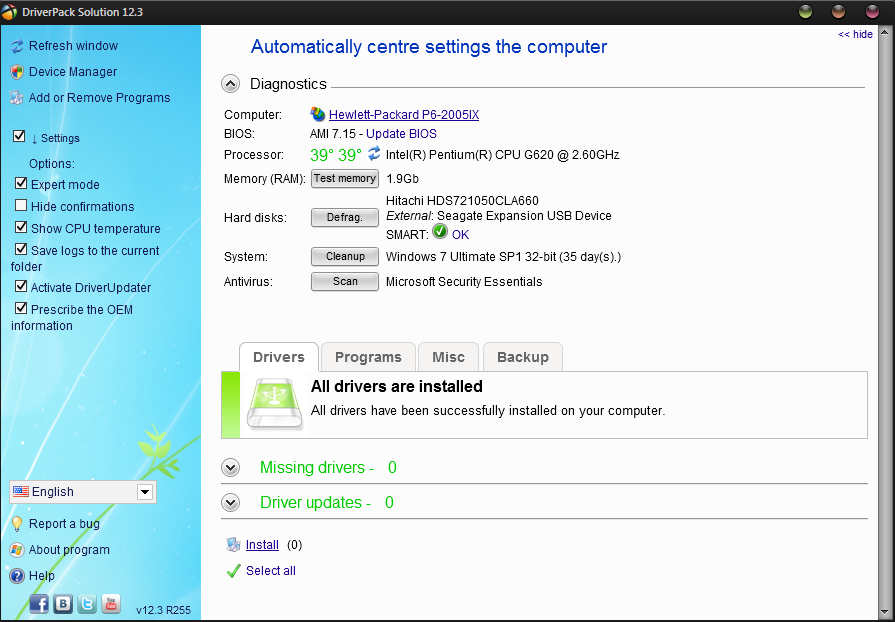
Drivers ensure the smooth running of your PC's hardware. Your PC vendor should have installed the important ones already, but in case you have formatted it or they have become out-date, you can easily update/install them with a tool called Driver-pack Solutions. Its completely free, and comes in 2 versions, the Lite & Regular one. The lite one just displays you the missing/out-dated drivers and offers you to download them from the web. The regular one is the full pack of 3 gigs and is used for offline maintenance.
Update your PC's Driver easily
Updating The Drivers Is Crucial

Boost Up PC Performance

Due to a load of programs installed, 100s of unnecessary start-ups enabled, messy registry, your PC is sure to slow down. But don't panic, my dear friends as we have the solution. Some free optimizer tools quite efficiently do the trick. These programs boost your PC to its heck. They maintain your registry, tidy-up your files, de-fragment your drives and ensure a 100% performance mark.
Piriform CCleaner: Download Link
Advanced System Care Free: Download Link

Advance System Care Pro
Optimize You PC To Its Heck

Prevent Hackers Through A Firewall

You may never know, when a hacker's bad eye is on to your innocent PC. To prevent this, firewalls are a must. If you are normal PC-User, then the default windows firewall will do you good. But if you work with sensitive data, use them. A firewall is like a barrier between you and the web which prevents unauthorized access to your PC.
Comodo Firewall: Download Link
Zone Alarm Free Firewall: Download Link
Download free firewall
A Firewall Protects Your Privacy

Run Un-Safe Apps Sand-Boxed

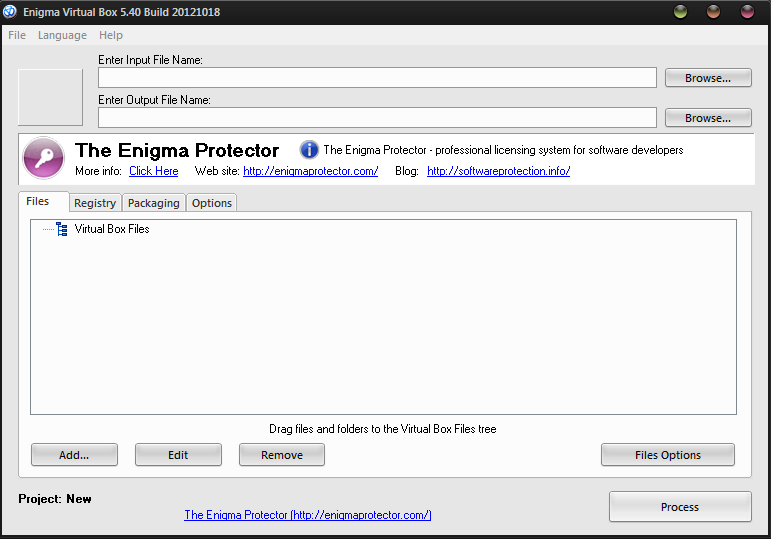
Many a times, we are unsure whether to install a app or not. This often leads to unnecessary tension. But don't get confused, You can sandbox them. No, it isn't some geeky tech, it is indeed useful. Sandboxing runs the app in a virtual environment so that it doesn't affect the whole PC. With this, you can run apps carefree!
Sandboxie: Download Link
Enigma VirtualBox: Download Link

Enigma Sandbox software free download

Browse Anonymously By Modifying The IP

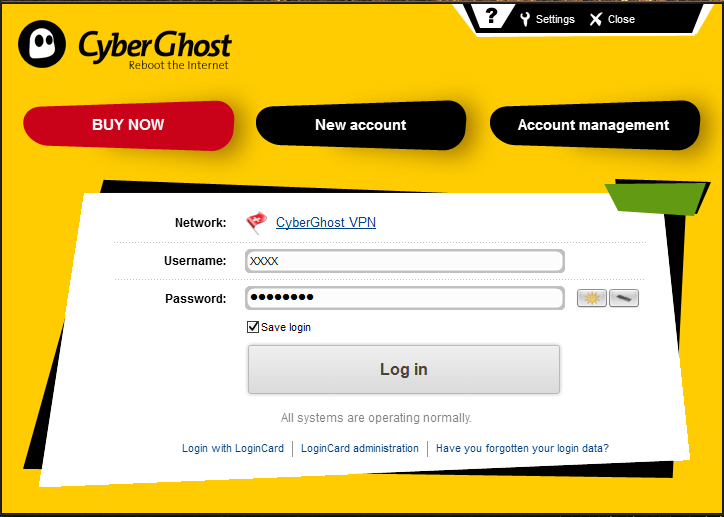
Phishing, Hacking, Spamming, etc! All these calamities can anytime attack your PC. These all can easily be avoided by changing your IP. If we change it, it enables us to browse the web safely'n'tension-free.
CyberGhost VPN: Download Link
Super Hide-IP: Download Link
Cyberghost VPN download

Install Some Freebies

Sometimes, its wiser to install free software rather than big powerhouses like Nero, Microsoft Office, etc. The reason: We never use all the features available in these suites. Freewares are more than sufficient to use and offer most of the features.
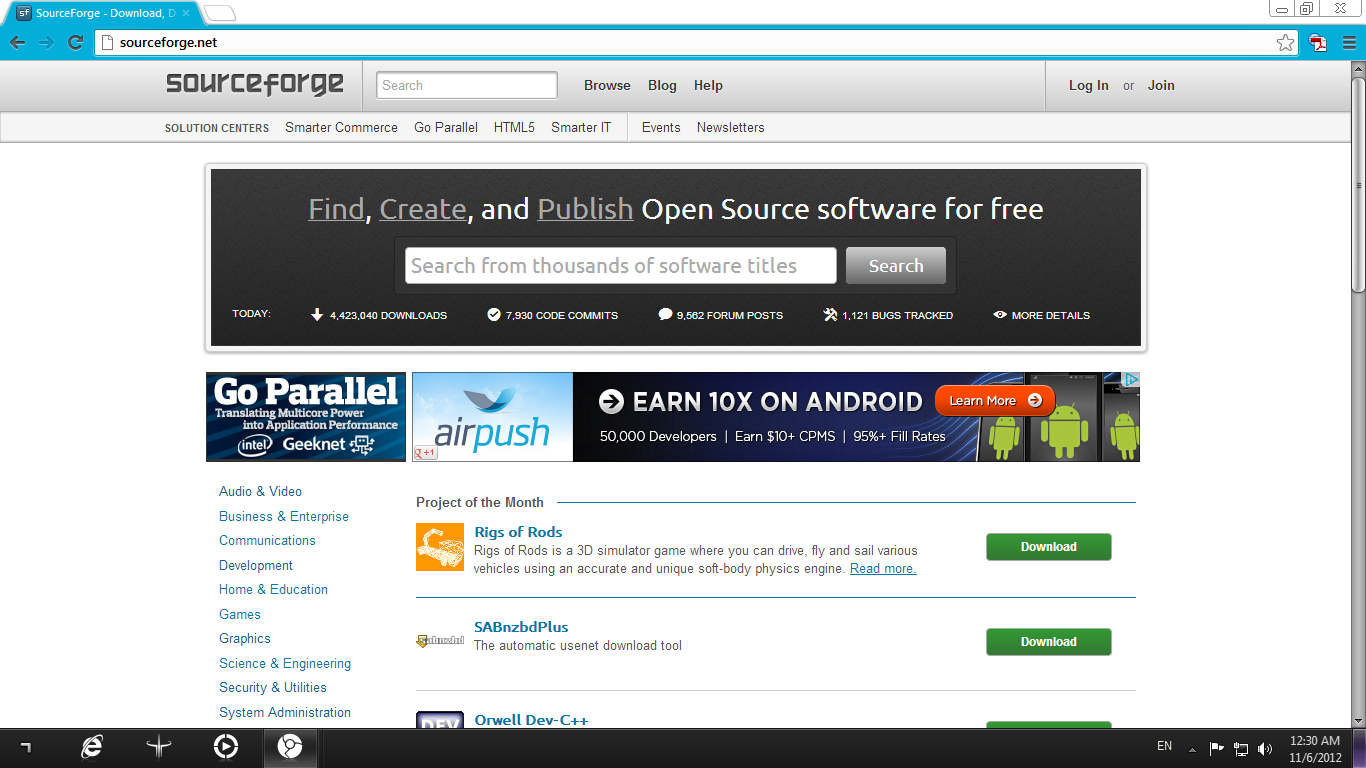
Source Forge is one of the best collections available on internet and you can browse freewares according to what you need.
Visit SourceForge
Sourceforge.com Homepage

The Conclusion...

Hope you folks like this tutorial and enjoyed it. Just keep in mind that you don't need to always send your PC to a technician. Sometimes, some simple guids like this are indeed useful :-) 

How To Install Windows/Linux from Pen Drive


SanDisk Pen Drive

Usually everyone installs a fresh copy of Windows or Linux using a CD or DVD Disc. It takes around (Let's say 30 minutes approx.) to install the OS from the Disc Drive. But now time has changed, we live in 2012 where all offline data is stored in Pen Drives (Also known as Thumb Drives, USB Flash Drives). So why wait for DVD's to Install the OS when you can use your pen drive? The benefits of installing OS from Pen Drive are two. One is that the OS gets installed in just 50% time of that taken by DVD; and You Don't need to buy a new separate DVD again. In This tutorial I will show you how you can Install Windows and Linux from your USB Flash drive.

Installing Windows from Pen-Drive

Installing Windows from pen drive is very easy and worthy. Usually it takes around 30+ minutes to get a new system ready, but If you install the same windows from Pen Drive it will take around 15 minutes even on a Pentium PC. Please note that you can install any windows above Windows Vista. Windows XP is not supposed to be installed from Pen Drive, though I am searching for it.

Win to Flash Logo
So to begin making a bootable USB, you will need a 3rd party application named "Novicorp Win To Flash"
This is a free software that lets you make your Pen Drive bootable to install Windows from it. Firstly Download WinToFlash from using the download link below:
Download Win To Flash Free

It's a portable software, you just need to run it from main Wintoflash.exe 
When you will open it for the first time, it will start the first run wizard. Here are the simple steps:
First of all click on next (sounds obvious)
Then tick on "I accept EULA" and the second one is optional.
In the next step, it will ask for license file which you don't own so click on Next.
Now it will show you some boring advertisement and then click on Next.
Now finally it will ask you for the setting, leave it as it is and (finally) click on Next and Next.

Now after so many clicks, you are able to use the program finally.
Click on the Green Check icon to start the wizard.
In the second step, It will ask you for two things: Windows files path and the USB Drive
Please note: This application needs the folder in which all the setup files are located and not the .ISO image of the Window you are trying to make setup of. So if you have an Image, then extract the image using WinRar or 7z first before continuing.

After telling the application where the setup files are located, click on Next
It will now ask you for accepting the EULA of the selected Windows OS, Accept it and click on next.
Now it will confirm that you actually want to install Windows setup in Pen Drive by Formatting it. So first check you pen drive thoroughly before continuing the formatting.

So let it copy the files, it will take some 5 to 10 minutes till then you may make a backup of files of your host PC if there are files in C:/ Drive, Desktop, My Documents and downloads.

If the copying is finished, its time to install the OS finally. Just Goto your BIOS settings and select the USB drive as the first option to boot from. 
You will find this article helpful when you will feel the speed of installation. The above method was for installing Windows from Pen Drive.

                                    How to make a bootable Linux Pen-Drive

In the above part, I showed you how you can install any Windows based Operating System. Now this time it’s about the little brother Linux. Linux is better alternative for some of the people because of its non-main stream features like ease of use, stability and speed. Linux has an interesting feature, known as Live Mode. In live Mode you can use Linux at its 90% potential, without actually installing it. It means that you can make full use of the OS by just booting from the Pen Drive. Now coming to point, I was telling you how you can install Linux from your pen drive. Linux has its own official software named LiLi (Linux Live). Using this application, you can make a bootable USB to install or test Linux from it. LiLi is also easy to use. Just install it and you are ready to use the application unlike Win To Flash which welcomed you with so many next clicks.
LiLi Logo

LiLi needs to be installed before any use, so install it. You can make your own bootable Linux installation in just five easy steps.

Step 1: Select the USB Drive
From the dropdown menu, select the USB drive from the list.
Step 2:  Choose a Source
Now select the source of Linux. You have three options, namely – Image of the Disc, Using the Disc and Download Linux online. Time taken by these is arranged in increasing order, obviously.
Step 3: Persistence
Leave this one untouched, as it is.
Step 4: Options
Option 1: Hide Files –Check this option if you want to hide all installation files with system attributes so that you do not get messed up with the present data in the USB drive
Option 2: Format the drive – Check this if you want to format and make a fresh copy of setup. Also helpful in eliminating errors (If existing).
Option 3: Enable launching Linux Live – keep it Unchecked as enabling this option will Download 70 MB Virtual Box software which you never needed.
Step 5: Create
The step you had been waiting for. Just click on the lightning icon and get it started. Within 5 minutes, your Linux will be ready to tested and install if needed.

Over To You
It is the end of today's post which described you how you can easily Install Windows/Linux from your pen Drive easily within half time or less than required by those scratched DVDs. If you faced any problem in any of the step then feel awesome to ask from me as I have tried all of the steps available above.
Comment if you need any help or just cookies with milk. Not really!!

Setup Picture Password in Windows 8

Windows 8 has a really cool feature for adding a picture password similar to maze lock in android. Picture password works as an alternative with the original text based password. As we know that Windows 8 is designed mainly for tablets, picture passwords work as a charm for tablet users and PC users too.

P.S. I have posted previously about how you can add Pattern lock for Windows, Check it out.
Pattern Lock for Windows Download

So if you want to add a password but too lazy to type it from the keyboard the you must try picture password for at least once, it can be enabled within a minute. It works fine with PC and laptop users too who don't have touch input present.

How it works
Picture password allows us to unlock our PC by using touch based gestures like tap, circle or swap. A picture password is a combination of any or all of these three gestures, so its upto you which gestures suits you. the gestures are to be made on a selected image which can be of your choice.

For a picture password you need to make a text password too for security purpose like in times if you forget the gestures position. one more thing is that the picture password works with a error rate of 2 cms from the original location, so you can unlock the PC more faster with approximate gestures.

In the below video it is shown how you can add a picture password.


Thanks if you watched and like+ comment on the video.
And you can also subscribe to my channel for more video updates.

Ptmaroct Videos on YouTube

Eight Windows 8 Apps That You Must Try

Recently I equipped my PC with the brand new Windows 8 RC. The best feature that I noticed is that I can now finally install metro based apps directly, which was restricted to few pre-installed apps in Windows 8 Developers preview. So while spending some time in the Windows 8 app store, I found some pretty cool metro based apps that are must try for every windows 8 user. So let me introduce you to  them.
P.S.: Since Windows 8 Store has no option for directly linking to the app page, so you will need to browse for them yourself. :-(
Don't worry there are just few 100 apps and all are categorized, so it should not become a reason for problem to you :-)

#Flow
This game I found was more addictive than your angry birds or fruit ninja, or something you play regularly. Basically the motto of this game is to join the ends of the dots. Don't worry it has many levels to test your intelligence. Every level is different from the previous one and you have a choice of selecting the grids
according to your level of intelligence. Below is the preview of the game-play.

Flow App Windows8

#Tap-N-Pop
This is a classic bubble shooting game with bubbles replaced with balloons. All you need to do is select two or more balloons horizontally or vertically. Apart from the regular game play, this game also offers many addons like Bomb, shake the balloons for shuffling color combinations or just flip the board. This game will surely work as a good time-pass option for you.

Tap N pop App Windows8

#Grantophone
Make your own funky psycho music and have the full control over it! This app will allow you to choose from effects and customize them the way you want. No definition needed to try this app, just try it and you will love it on the first time. Not recommended for boring people who hate fun.
And also keep the volume low or it may scare off your parents.


Grantophone App Windows8
#FotoEditor
It is a metro based first photo editor with all the basic tools needed by a photo editing software. You can take pictures right from your webcam for instant editing. Or browse from you hard drive if you don't have webcam. You have seven options and many sub-options for making a perfect photography.

FotoEditor App Windows8
#Metrotwit
This is a metro based twitter client for your PC. Almost all options are available for you starting for posting a tweet, to managing how your app looks. So no more www.twitter.com from your web browser anymore. It is probably the best twitter client that suits my needs and will surely yours.

MetroTwit App Windows8

#Gaana
Gaana (Hindi meaning of Song) is good music streaming app that allows you to listen to national, International and evergreen hits within few clicks. Now downloads needed ,just click play and enjoy. No Problem even if you have low bandwidth, this app will recognize it and stream song with suitable bit rates.
This app has clean interface and finds related tracks as soon as you listen to one song.

Gaana App Windows8
#GeekTrivia
This is a quiz app, based and ran by the famous tech geek website HowtoGeek.com.
For all the geeks reading this, this application is a sure must have. I recommend it personally. Why? using this app you can test your knowledge about computers and other geek stuff like games and science.

GeekTrivia App Windows8

#The Best and No1
The last is not the least, its about the best. My rating for this app will be 6/5. I am talking about the Forismatic app. this app will give you inspirational quotes from authors around the world and supports live tiles too. So install and inspire yourself to live a positive world.


Forismatic App Windows8

So I hope that you will love mt collection of apps. Please feel free to comment and let me know about the new apps

Fix Windows 8 Shutdown Error

If you installed Windows 8 Release Preview on your Computer, you may notice the the shutdown bug. The bug is That only your OS is shutting down , but still the power is on. This can become a problem with laptop users, as it will consume battery slowly if not turned off completely.

Not only this, in my case, my PC throws up the error dialog "Winlogon.exe - No disk on drive D:\ "
So as to shut down my PC, I had to press continue three-four times.
But not now, I have found a way to fix this bug. this problem occurs due to a feature enabled in the OS by default. The feature is "Fast Startup" which is enabled by default. basically the use of this feature is to make your PC boot faster , but whats the use if it throws up errors and waste battery. If you disable this feature, you will automatically fix both above errors. Also it wont affect your boot Speed so I recommend you to disable this feaure, even if no problems are found.

To Disable this feature, Goto Start page and search for "Power Button Settings" and then Click on "Change what the power buttons do"


Now click on "Change settings that are currently available"


And now finally Un Check turn on fast startup


Now click on save and bug fixed :-)