Introduction to PC Customization

Who in this pretty good universe hates to be unique? Well I like to be the one who stands out of the crowd and appear as bold and impressive than others and I hope you so do the same. What's the thing that we do not customize? Books, Mobiles, Vehicles and in fact every thing that we own as private. Everyone wants their properties to be eye-catching and whoa styled. Customization can be anything, like sticking Vinyls to your Car, Changing your cell's ringtone or wallpaper, or Theme or if you are a genius than you can also change your cell's boot screen ;-) And the king of all, customizing a PC has many, many and many options to go for. In a PC you can Customize EVERYTHING, but the condition is you must be using Windows platform though. Now in this post I will get into details of PC Customization. (Software)

PC Customization Software

PC (Or Laptop) Customization has four major options to opt for customization and they are, oh wait lets see them one by one :- ). Let us start from scratch, and for sake of convenience, I have titled the level of geekness needed and the risk related to the customization. 

So what's the very first thing you see when you press the power button?

The BIOS Screen 

Level: PRO | Risky: Very Much

The BIOS screen is the very fist thing that you see when you hit the Power button of your PC, not sure what the PC shows in a FBI Computer though! Some Motherboard makers like Asus provide users to change the BIOS screen through a bloatware in the Drivers Disc. Since Many people PC's and dads doesn't allow it, so lets skip this one and move on to next option which is allowed for all PC's having Windows 7 Installed.

The Boot Screen

Level : Average | Risky: Negligibly low

The Booting Screen is the second thing you see when the PC starts. This one is customizable to a good extent. You can change it if you have Windows 7 installed, which is most probably on many of the PC's in this good world. Though it is also possible in Windows XP using Tune Up utilities software but it is very less used and the customization is not helpful in case of Windows XP as you need to use images which will be compressed to ugly 256-Bit based BMP images and you then opt for the default one. 

Now talking about Windows 7 customization with regards of Boot Screen, you can change it very much as you need. The most famous and stable tool made for this purpose is the Windows 7 Boot Updator. The level of risk in this customization is very low because you can edit all the things using a single program on the go and the #Program allows you to create backups of system files and restore them if needed. Even I am using this program and the programs is very reliable.

The Windows 7 Boot screen has two part, static and dynamic. In static part, you can edit the following: The Background Color from 48 predefined colors which is good enough to provide you a choice of colors or you can also change the whole background by defining a image of full colors and this options seems to be more useful. Now coming to text, you can change the following text that you see as "Starting Windows" "©Microsoft Corporation" and after changing the respective text you can change their font size, their position i.e., with respect to space gap b/w the edges and the text color and the color now as more number of choices. 
And if you want a cleaner look, then you can also remove both messages to give just a animation part on a black background.

And now coming to dynamic part, the animation part, you can change the whole animation. If you would like to check out the some example and awesome animations available on Internet, you can visit our Boot Screen Gallery where I have Uploaded some of the best booting animations I have found on the #Internet. Moreover, you can can also create your own booting screen animation by creating 105 different BMP images as parts of animation and copying them inside a folder and then selecting that folder using the boot screen editing tool.
Now after editing the whole boot screen drastically, let us move to the next part which is Login Screen.

Login Screen

Level: Geek | Risk: Low

The Login Screen is the next thing after booting screen and is the intermediate between desktop and booting screen. The Login Screen can be changed in many ways. The Level is geek because you need to deal with system files manually and since the files are system files so there is a risk of system crash in a low extent.

You can customize your Windows 7 Login screen by changing its background ( easy and non risky ) and by changing its other small parts like Messages, lower branding and login forms ( Geeky and risky ). The good thing about customizing login screen as there are many applications available online which will help you change the background of your Login Screen making the task easy and risk-less. One such program is Logon Studio by Stardocks which allows you to edit Logon Screen for Windows XP, Vista and 7.
Download Logon Studios

And if you want to change login forms and other high level things, you need to either edit your system files which are involved in Login Screen using a program named Resource hacker and then replace them with system files. This thing is very professional and risky too.

When you have logged in to your PC, you usually see the very own desktop if your PC is working fine.
Now moving on to next part, and that is your favorite one, the very own desktop.

Desktop

Level: Average | Risk: You can customize your desktop and your friends will kill you if you do not tell'em how to do that.

Desktop is the first thing you customize when you get to use a PC or a laptop. The first thing you do to customize it is by changing its wallpaper to your own face, you cat, dog, your favorite artist or any awesome piece of shit.

But kiddo, time time has changed and it is time to grow up and enhance your desktop to the next level, to the geek level. Changing your desktop wallpaper is not enough, you need to make it alive. Now question comes how to make it more beautiful when you are already using the best wallpaper according to you.

Desktop customizing is fun and you have limitless options for customizing it. The best are Rain Meter and X Widgets. Rain Meter makes your desktop what you never thought of and has thousands of full, free themes available online. The best place to search themes for Rainmeter is DeviantArt and Google. Here is a example of my case. The wallpaper that is currently applied on my desktop was just a group of vertical black bars. Now to renovate the look of my desktop I stumbled upon a good and matching Rainmeter theme for this wallpaper and after applying theme, I got this.

Cool Black Rainmeter Skin

Looks awesome, isn't it? 
P.S. The additional changed that you are seeing in my desktop are usable, I mean that I can see the time from it, open Hard Drives and control my Music player as I want like seeking the track, changing its volume and so on. There are many Rainmeter themes which are made for everyone, you can get a simple minimal to Heavy and detailed themes for more fun.

Now you have seen the power of rainmeter, its time for Xwidgets. Xwidgets, is same as Rainmeter as the collection of Xwidgets gallery has reached thousand of widgets and each and every widget is very promising in terms of customization.  I have already posted abut XWidgets on my blog previously and here is the condition of my desktop when I used it previously.

X Widgets Collection


Read More about XWidgets

Now which one to choose? Rainmeter or X Widgets? Well, if you are asking my choice then I would recommend you Rainmter if you want a complete and perfect layout of widgets and tools.

And if don't wanna mess up your desktop and just want a bunch of useful and stylish widgets, then go for X widgets. You can find exactly what kind of widget you need. Whether its a stylish clock or a RSS feed reader or just a showpiece. 

So the whole desktop customization is managed by Rainmeter and X Widgets somewhat. 
Your PC has booted, Logged and now you at desktop, what's next? Its the Windows Explorer and now the customization is about it.

Windows Explorer

Level: Geek | Risk: Medium

Windows Explorer is what you use to browse your PC in terms of  HDDs, Removable drives, Folders and Files. A non geek user can't use his PC without this application and so it behaves as a most used and important part of Windows. Now when it comes to customization, it is very hard to customize Windows Explorer and it also has some potential risk of system crash as first of all, to customize it, you need to have perfect knowledge of shell level editing and it is risky because you need to replace existing system files with your edition. But even after this, you can't say that this is useless, but in fact if you are able customize this one, then the PC will act like as if a new version of OS is installed and it also completes the combination of Boot Screen + Desktop + Explorer Customization which is enough to regard your PC as the coolest one than the default installed.

Some geeks around the world practice their geekness and upload modified and cooler version of Explorer related themes. For eg, the glass version of theme by devaintart user Pawan2face looks like this.
Download Theme
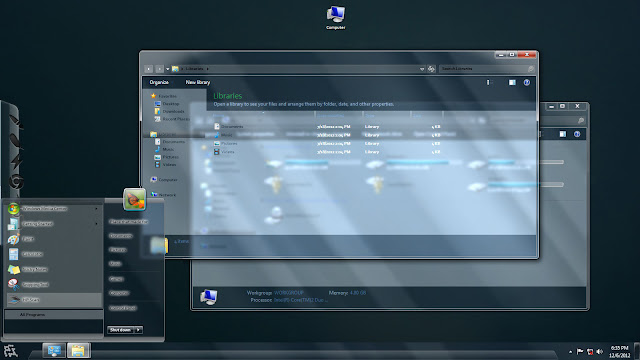
Real Aero Glass Windows 7 Theme


So if you want to completely customize your PC, you need to make some customization to Windows Explorer!

Conclusion

Customizing PC is both Fun and Awesome if done properly and careful, but if try to smarten with your PC then you can probably end up with the final option of Re Installing Windows. It takes just a few hours to get a nearly perfect combination of customization. My favorite options are customizing Boot Screen as I have seen some amazing and oomphing Boot Screens to add an eye candy to our PC and some Rain Meter themes that changed my whole desktop to the one that every computer geek will like to adopt.

Sorry I forget to ask, What are the things you do to customize your desktop. Please tell me your favorite Boot Screens and Rain Meter Themes you use and would like to recommend to me.

Please allow me to write next post of our own Blog!
Regards, Anuj Sharma  (Ptmaroct)

How To Reset Windows 7/8 Password

Reset Windows 7 Password
If the above case happens with you, what will you do? Of course Install a fresh copy of Windows. But if the same happens in a PC that you don't wanna mess with, then you can try reading this post and find a cool and little solution.
Are you using Windows 7 in you PC? Then you must be aware that you can add password to your user account. It increases your computer's security and restricts unprivileged person to access your PC up to some extent.

A Windows password is not secure and can be easily changed by normal PC user within minutes. Its not secure but still you must apply it to your PC. Changing Windows password is damn easy and every single hacker and computer geek knows how to do it. Since all people on earth are not hackers, but still one must know how to reset Windows password in case you forgot your PC’s password and you need to use your PC urgently.


Windows 7 itself provides legit options to reset forgotten user password such as password reset disk, by using this feature, Windows 7 saves some credentials in your pen drive, so that whenever you forget our Windows password, you just need to insert that specific pen drive and then Windows will unlock. But this feature is not useful in practical life as in order to use this feature, you must have opted this feature before you forget your Windows password. And you can’t predict when you will forget the password of your Windows account, Right.

Now here I share about method that actually works and can help you reset your Windows PC’s password.
So what are we going to actually do? Its very simple, we will use the “net user username password” command prompt trick to reset Windows password.

Lets perform a practical use of this trick so that you will understand clearly what I am talking about. Suppose that your friend has added password to his Windows account named “Anuj” and his PC is booted up as he had entered the password and left his PC turned on. So now you can use his PC as usual, now if you want to change his account password, then you just need to follow these easy cheesy steps:

Firstly, open Command Promt ,i.e., Goto Run, type CMD and hit enter. Now you need to enter the following thing and hit enter:
Net user anuj newpassword
Here net user is a CMD command and anuj is username and newpassword is the new password.
Change Windows 7 Password using CMD


So you just changed his PC’s password without even knowing the older one.
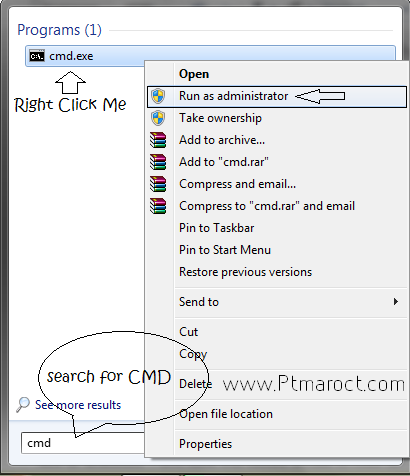
Source of error: The only and main source of error is that you might not be having administrator previliges, which are required to perform the above action. That’s why I asked you to use his PC when he has logged in to his PC using the password. Or else, continue reading this article if you want to know how to reset Windows password without admin previlages, and without logging into the account. See the image below to open Command prompt as Admin.

Open Command as Admin

So now we start the article: Changing Forgotten Windows 7 Password
  
In the above trick I showed you how you can change Windows password without knowing the current one. But this trick works only when you are having administrator access over the PC. What will you do when even you cant login to your PC when you forget the password? Well, In that case a bug in Windows 7 will help you regain access to your PC. So how does the new trick works?

To change the password we used command prompt, but question arises how can we open Command Promt without logging into our PC?

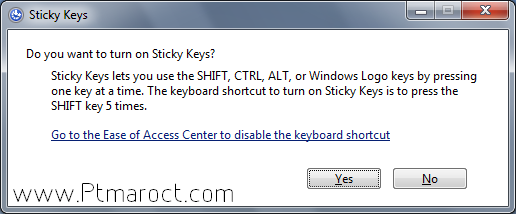
You might know that when you hit the “Shift” Key five times or more, a dialog box apears that says you to turn on sticky keys. We will use this trick to recover lost Windows password. The executible of Sticky Keys is located here: "C:\Windows\System32\sethc.exe" Where C:\ represents your Windows partition.

 Sticky Keys
 
The good thing about Sticky Keys is that they can be accessed even at the login screen which means them perfect for the plan. So the plan isto replace the “Sticky” keys shortcut to launch command prompt, and then finally change the password using the Net User username newpassword” command.
So now new problem arises, How can one person disguise Command prompt inside Sticky keys exe file. Well, for that thing I am here and I will show you how to make it in action.

To start the mission, you need a Windows 7 Installation Disc.
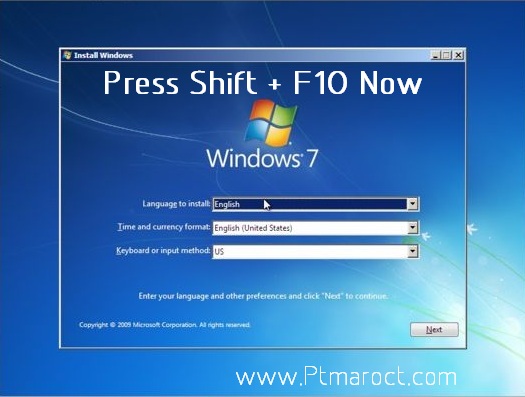
Please insert the disc in your Disc drive and Boot from it. When the following screen appears, Press Shift+ F10.
 
Open CMD during Windows setup 

Yes, It’s a shortcut key for launching Command prompt with admin access during Windows setup. Now after pressing Shift+F10 key, you will soon see a command prompt. On opening, command prompt, it has DVD drive selected as default drive which is indicated by X:\

Now, you need to find out which drive is acting as Windows installation drive. To find out your Windows installation drive in which the Windows has been already installed, Just follow the steps below:

1. In CMD, Type C: and hit enter
2. Now type DIR and hit enter
If you find the following directories (PerfLogs, Program Files, Windows, Users), then head to step 4
3. And if you are not able to find these four directories, then use step #1 for drives D: E: F: and so on until you find the correct drive. The reason is that is some cases, the C:/ Drive is reserved for Boot loader and also known as “Reserved Memory” partition. So finding the correct Windows installation partition is must.
4. After knowing the correct Windows installation partition, its time to perform the tricky part.
Now we know the drive where Windows 7 is installed. Now we will replace the Sethc.exe file (Sticky Keys launcher) with CMD.exe (Command Prompt). But first we need to make a backup of the original Sethc.exe file. To do so, run the enter the following command in CMD.
Copy C:\Windows\system32\sethc.exe C:\
Here C:\ Drive is the drive in which Windows has been installed. This will make the backup of sethc.exe in C:\ which we will replace later.
Now run the following command
Copy C:\Windows\System32\CMD.exe C:\Windows\System32\sethc.exe
You will be asked for confrimation, when you enter the above command. To confirm type Y and press Enter.
Now you have disguised Sethc.exe with Cmd.exe, So without wasting any time, just restart your PC and when the login screen appears, Press the Shift Key Five times
Now command prompt will appear and you will see it instead of the Sticky Keys window. So now perform the following Command:
Net User Username Newpassword
Here Username is the name of account of which the password you want to change and Newpassword is the password that you want to set.
After sending the above command, you can finally Login to your PC using the Newpassword and you made it to the PC.

SO here are the things that you did in the last 15 minutes or less:
Inserted Windows 7 Setup DVD
Opened Command Prompt Using Shift+F10 Key
Processed the following commands:
1.       Copy C:\Windows\System32\Sethc.exe C:\
2.       Copy C:\Windows\System32\Cmd.exe C:\Windows\System32\sethc.exe
3.       Restarted PC and at Login screen pressed Shift key Five Times
4.       Sent the following command
“       Net User Username Newpassword
5.       You won and successfully resetted the Windows password :-)

Restoring the original Sethc.exe File

As we have replaced the default system file as cmd executible, we need to place it back to its own place as it is necessary file of system. Amd you don’t wanna get into trouble because of the hack you have done. So to replace the disguised Sethc.exe with original system’s Sethc.exe, follow these steps:
1.       Insert Windows 7 Setup DVD and Boot through it.
2.       When it starts completely, Press Shift+F10 and enter the following command:
Copy C:\Sethc.exe C:\Windows\System32\sethc.exe
It will ask for confirmation, just press Y and Hit the Enter Key.
Now Your PC is back to its original start and should be working fine too. Now all you need to do is share your experiences and feedback with me and ask for any help that you need.
And Don’t forget to share this post and subscribe to Our Blog’s Newsletter.
Have a good day and safe journey to kitchen :-)

Editor’s Note

Today I taught you a new method of resetting forgotten Windows password which you can use to recover your lost Windows account and login to your PC. If you are thinking why I didn’t mentioned tools such as Ophcrack and Password Reset Disk. Well password Reset Disk is useless and makes no sense at all. And Coming to Ophcrack, its has two disadvanatges, which are:
1. Ophcrack requires a huge 600 MB download and also you need DVD or atleast USB flash drive to make it Run.
2. And the main use of ophcrack is for finding Windows password, and the worse part of it is that Ophcrack uses dictionary attack to find Windows password, which does not guarantee 100% recovery rate or even in 50% cases, ohcrack fails to find the password and you are left with one option: Follow this tutorial.

Complete Guide To Boost Your New Windows PC

Fire-up your new Windows PC
So, this weekend, you've bought a new Windows-PC? Hey that's cool! But wait. That chunk needs some tweaks before you completely switch it on. Below is an easy tutorial to fire up your PC for better performance and stability:-
    ...So, you didn't close the tab? Very good that you kept reading.

Format It

That PC of your's could be bloated with 1000$ worth of crappy "Trialware" and junk software. The best solution to this problem is to do a complete RE-FORMAT. If you really want a stable PC, then there's no other option like this. Formatting empties up your Windows partition and re-creates it from scratch. This way, you come Back-To-Square-1. But if this doesn't suit you wallet, you can move to step-2 without any prob.

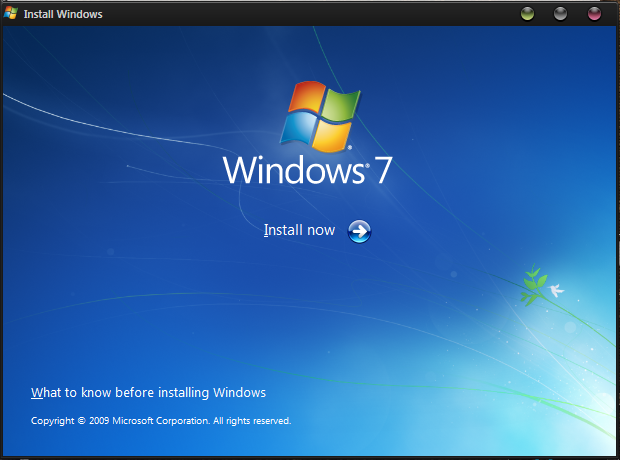
Install Windows 7
Re-Formatting is the best solution.

Say Good-Bye to Junkware

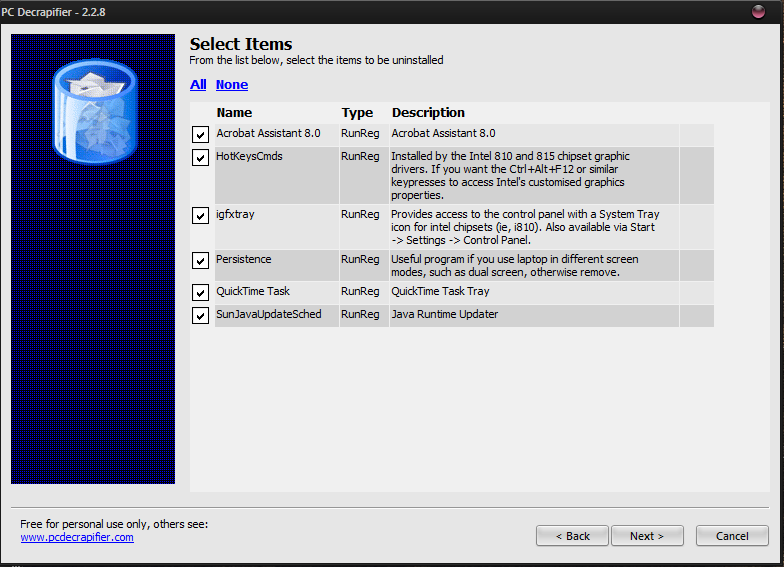
So formatting doesn't quite suite your style, eh? Not to worry, you can still get a stable PC. When you buy a new PC, the OEM Manufacturer installs some software as part of the factory settings. These software usually include Antivirus trials, some basic functionality tools and blah, blah, blah. Often, these tools mess up your computer and affect its performance. These useless software can be removed with a tiny tool called "PC-Decrapfier". This software automates the process of cleaning-up the messy software on your computer. If you don't know as to what to uninstall, you can consult a techie friend. You can download PC-Decrapifier using the link below.Download PC-Decrapifier

PC-Decrapifier
Blow away the "Junkware"

Install an Antivirus

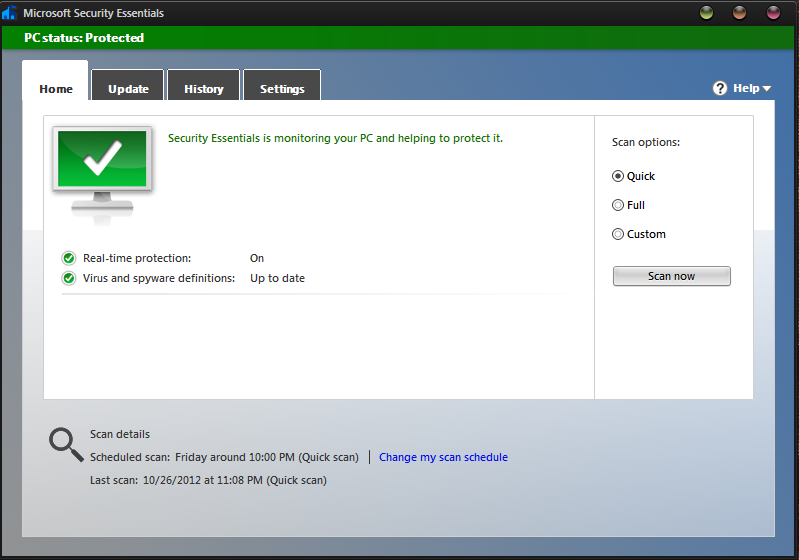
At a particular stage, its likely that your PC could be messed up by nasty Viruses. So as "Prevention is better than cure", an Antivirus suite is a must for every system. An antivirus suite protects your PC from viruses, worms, key-loggers, trojans, etc. You don't need to spend your bucks to get Real-Time protection, freeware antiviruses will equally do you good.
An Antivirus is sometimes all you need
Antivirus Suites Protect Your PC

Update Necessary Drivers

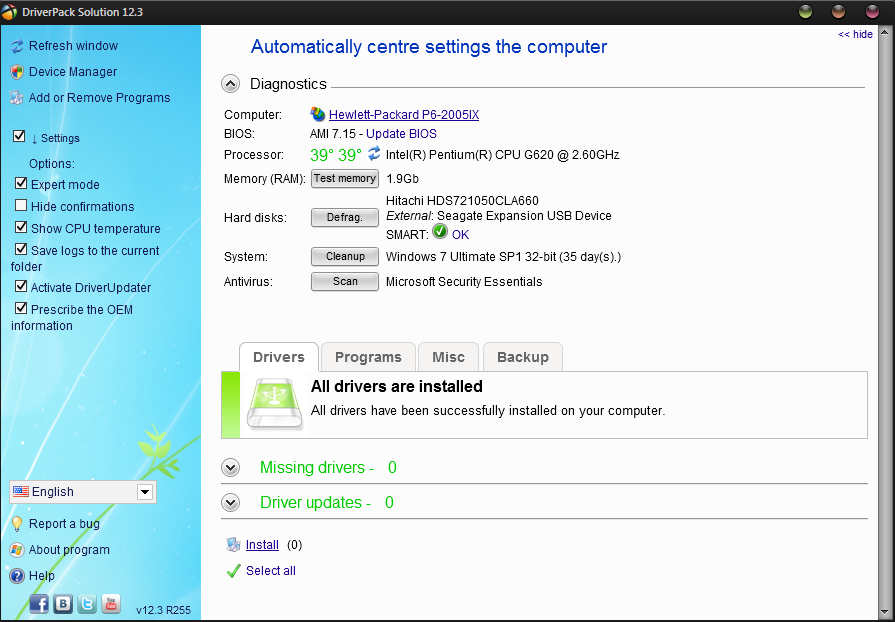
Drivers ensure the smooth running of your PC's hardware. Your PC vendor should have installed the important ones already, but in case you have formatted it or they have become out-date, you can easily update/install them with a tool called Driver-pack Solutions. Its completely free, and comes in 2 versions, the Lite & Regular one. The lite one just displays you the missing/out-dated drivers and offers you to download them from the web. The regular one is the full pack of 3 gigs and is used for offline maintenance.
Update your PC's Driver easily
Updating The Drivers Is Crucial

Boost Up PC Performance

Due to a load of programs installed, 100s of unnecessary start-ups enabled, messy registry, your PC is sure to slow down. But don't panic, my dear friends as we have the solution. Some free optimizer tools quite efficiently do the trick. These programs boost your PC to its heck. They maintain your registry, tidy-up your files, de-fragment your drives and ensure a 100% performance mark.
Piriform CCleaner: Download Link
Advanced System Care Free: Download Link

Advance System Care Pro
Optimize You PC To Its Heck

Prevent Hackers Through A Firewall

You may never know, when a hacker's bad eye is on to your innocent PC. To prevent this, firewalls are a must. If you are normal PC-User, then the default windows firewall will do you good. But if you work with sensitive data, use them. A firewall is like a barrier between you and the web which prevents unauthorized access to your PC.
Comodo Firewall: Download Link
Zone Alarm Free Firewall: Download Link
Download free firewall
A Firewall Protects Your Privacy

Run Un-Safe Apps Sand-Boxed

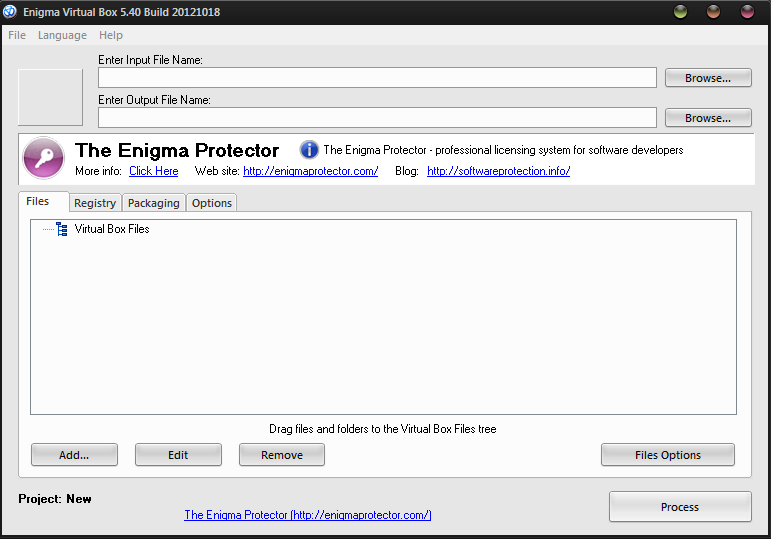
Many a times, we are unsure whether to install a app or not. This often leads to unnecessary tension. But don't get confused, You can sandbox them. No, it isn't some geeky tech, it is indeed useful. Sandboxing runs the app in a virtual environment so that it doesn't affect the whole PC. With this, you can run apps carefree!
Sandboxie: Download Link
Enigma VirtualBox: Download Link

Enigma Sandbox software free download

Browse Anonymously By Modifying The IP

Phishing, Hacking, Spamming, etc! All these calamities can anytime attack your PC. These all can easily be avoided by changing your IP. If we change it, it enables us to browse the web safely'n'tension-free.
CyberGhost VPN: Download Link
Super Hide-IP: Download Link
Cyberghost VPN download

Install Some Freebies

Sometimes, its wiser to install free software rather than big powerhouses like Nero, Microsoft Office, etc. The reason: We never use all the features available in these suites. Freewares are more than sufficient to use and offer most of the features.
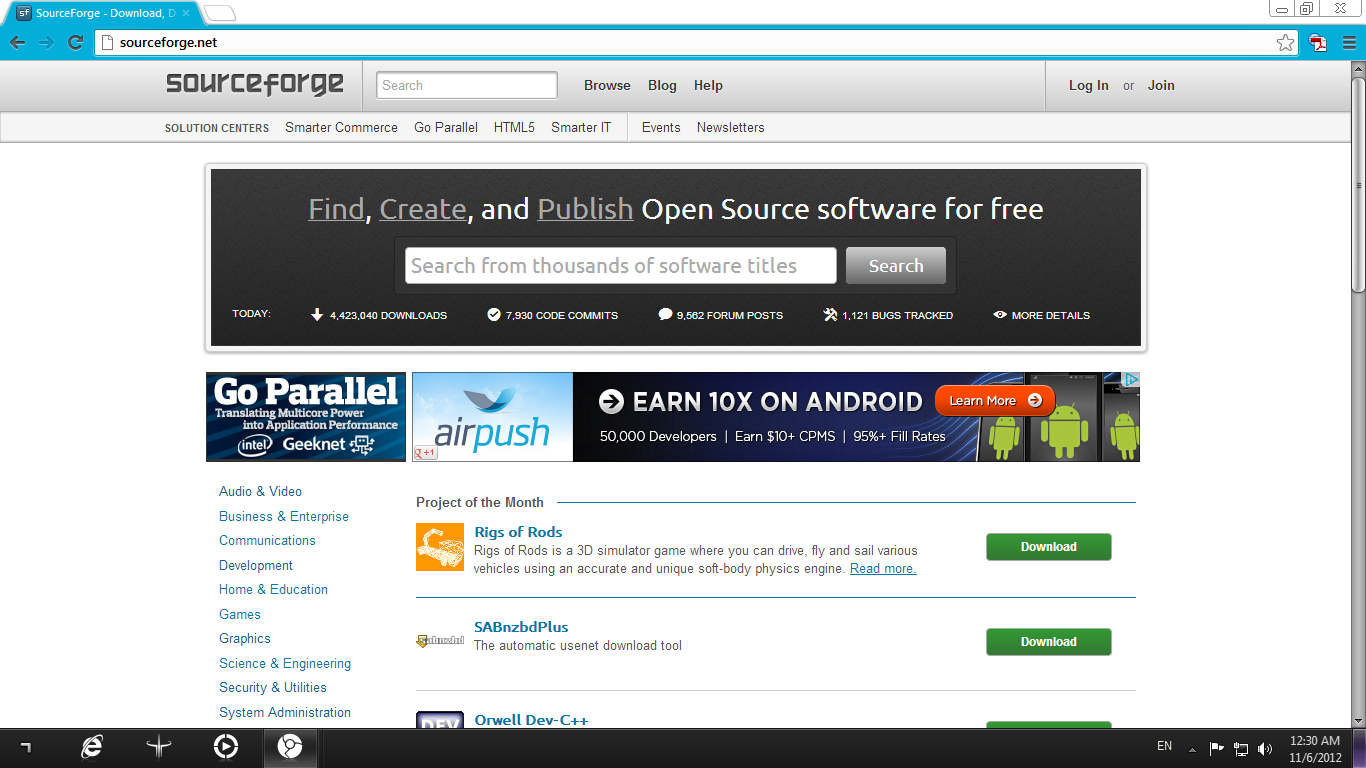
Source Forge is one of the best collections available on internet and you can browse freewares according to what you need.
Visit SourceForge
Sourceforge.com Homepage

The Conclusion...

Hope you folks like this tutorial and enjoyed it. Just keep in mind that you don't need to always send your PC to a technician. Sometimes, some simple guids like this are indeed useful :-) 

Setup Parental Control in Windows 7

Parental Control is a very useful feature that comes with Windows 7 to help parents and guardians manage and restrict PC usage by their kids/siblings. With the help of this feature you can block access to games, let them use PC according to specific rule of time limits and timings and block all applications and games.

Every parent is obsessed with the habit of their kids using PC for longer run which has its own bad effects with various aspects. Firstly that child will go down in his/her studies, secondly it will make his/her eye-sight weak and finally they will be nerds. To over come this problem, the best OS in the World named "Windows 7" has something useful to you. The feature of Windows that I am talking about is "Parental Control" and with this useful feature, you can block access to all games, let them use PC only for allocated time and let them use PC how they should be doing.

So if you want to control your sibling's/kid's PC usage habits, then you are at the right place as I have written a detailed article for helping you set-up Parental Control in your Windows 7 based PC.

So without wasting any time, let us start. First of all you need to add a password to your own admin Windows account as it is a necessary requirement. To add a password, follow the steps provided below.
Note: If your Windows Account is already having a password allocated to it, then skip this step.
  • Click on Start Button and then click on user picture. It will open your account settings.
  • Now select "Create a password for your account" and create a password for your account.
  • Type and confirm the password and add a password hint then.
After creating password create a new account and name it "Home" or "Guests" This is because when we setup parental control, we need a separate password free account on which the restrictions are to be putted. This account is to be used by all other people in your house except you, because you will use admin account.  And the point of adding password in Admin account was that, there will be no restrictions on the admin account as usual but on the other account which is password free will be used by kids and they will be forced to do so because they do not know the password for admin account.

Now to create a new Windows account on your PC, 
  • Click on start button and then on user picture. This will open the user accounts window.
  • Now click on manage other accounts.
  • Now click on "Create a new account" and then type the account name. Let it be named "Home"
  • Select the standard account option which is under the name field and then click on OK
Now from where you click on User accounts window, open it again and then click on Parental Controls which is located in the left-most bottom part. Now it is time to set parental controls on the "Home" account.

When you have clicked on Parental Controls, it will ask you for the account to continue, click on the "Home" account. Now select the following from the window "On, enforce current settings" It will enable parental controls for the "Home" account. After enabling Parental Controls, you will be able to edit three settings namely, Time limits, Games, Allow or block specific programs

Now let us understand what the settings actually mean.

Time Limits
Using this feature, you can let user use or not use PC for specific time. By this setting you can manage the time for which the PC can be used. Please Note, that this setting does not blocks PC usage for specific period of time like one hour or two hour or so. This setting actually lets you specify the hours in which can the PC be used like 10 AM to 8PM for Sunday and 3PM to 8PM in working days. This setting is therefore calender based and NOT magnitude based. You will understand it more clearly by applying it.

To enable time limits, click on "Time Limits" and after clicking on it, you will get a graph like grid in which you can specify timings for PC usage. Now how to set timings? Its very simple, just drag the cursor to tell Windows the PC usage. The blue area will represent the blocked time and the rest of white will represent the allowed time. For example if you DO NOT want to let your child use PC between 3AM to 7AM then the grid will look like this.

Now moving on to next feature, blocking games on PC.

Block games

This feature is less effective because of many reasons. This does not mean that you can't block games completely all games, you can do so too by using the next setting but let me tell you why this settings sucks. Block games settings uses game ratings based on ages and other factors to block games. Firstly this setting is applicable to system pre-installed games like Chess Titans and other useless games. So there is no over all benefit of using this feature. But wait, it doesn't means that you can't block games. In fact you can block each and or even every application from running including games. So I recommend you to use next option.

Allow or Block specific programs

This is the best use of parental control feature of Windows 7. Using this feature, you can allow only specified programs to run or even block each and every program for your kids in your PC. The other benefit of this feature is that no virus can effect your PC when your kids are using pen drives for sharing data. Once this feature is enabled, then you do not to fear of any harm to your PC and games will be completely blocked.

Note:The games and applications will be still available for admin use and will not be blocked permanently so their is no harm for blocking them for kids.

To block and allow specified programs, click on "Allow or block specific programs"  and then click on 
"User can use only programs that I allow". Now Windows will search for all programs installed on your PC and then show you. Click on programs that you want to allow your child to use. Ticking on program's will make them able to be executed by the user other than you. So enable all useful programs that you think will be needed by your kid and all other programs will be left blocked. Optionally you can browse for programs that are not in the list but need to be unblocked.
In Simple Language: Tick on the programs that you want to allow your child to run them from his account and all remaining unchecked (All programs) on your PC will be left blocked.

Whenever your child tries to open any game/applications that is not allowed by you, then this message will appear.

P.S. If you child needs this program for emergency usage, you can allow him/her by using the "Ask an administrator for permission" Which can be accessed from the bottom of the warning box. When you will click on it, it will ask for the password and when you will enter the password, it will ask you to keep blocking or unblock this program.

Conclusion

So the guide finishes for setting up Parental Control feature in Windows 7. I hope you liked it apply it practically on your PC. So now you can manage your child's PC usage habits and be tension free :-)
Feel free to ask any questions and I will try my best to reply to your queries.
Have a good day, you are the most awesome person I have seen in this universe. ;-)

WinRar vs 7zip: Which is better?

File compression means to compress the files to save disk space and faster copying of data. Though media files like songs and movies can't be much compressed and have a very high compression ratio, But on the other hand #games and #applications have very low compression ratio, depending on the nature of files included in the application/game. The lower the compression ratio, the less is size of compressed file and it also increases the time to decompress the file too. But in nowadays we have a plenty of time to decompress as if we compress a game, it will become smaller in size and thus increasing free space in removable drives like flash drives. So it means we can carry four compressed games or one installed game at a time.

             Compression ratio = Compressed file size/Actual file size X 100

In easy language, If the full installed game is of 2 GB and the compressed version of it is of 1 GB, then the compression ratio is 50%, which is not bad if you want to carry more stuff in the same drive.
Now when it comes to choosing the best compression software, the following things should be kept in mind:

What determines how good is a compression software?

  • Does it have a good compression ratio?
  • Does it decompresses quickly?
  • Does it supports SFX (SelF EXtracting Archives) archives? (Optional)
  • Is it popular?
I will answer these four question by comparing two compression softwares, WinRar and 7Zip. You may be familiar with WinRar as it is replacing WinZip very quickly. Now, most pirated compressed softwares and games are compressed using WinRar. What has made WinRar this popular? And what about 7Zip. 7Zip is a new comer and has more power and less compression ratio that you can never imagined. In the end of this post I will show you the awesome power of 7Zip, so read the full post if you don't wanna miss the WOW part. So lets test these apps hand-to-hand.

Test 1: Compression Ratio

Compression ratio is the most important factor for any file compression software. As I have told you that the compression ratio is inversely proportional to the extraction time, but still having a low compression ratio is very useful.This is because of the following reasons
  • If the compression ratio is lower, then it will decrease the file size.
  • Download will complete quickly
  • Less #internet data will be used.
  • Your file will become popular in p2p sites, where people look for the smallest file size before downloading.
So after knowing the benefits, the time increased in extracting the files is negligible at all. Now lets see what you can compress with high and low compression ratio:

Media files: Like MP3, M4A and all video files have very high compression ratio of 99% or even 100%. So its useless to compress these files as media files have a different compression method, and that is by changing data rate and frequency. So you should never try to compress media files and use them as it is.

Documents: Like PDF, [.]Doc and others have also a negligible compression ratio around 95% to 100%
So there is no need to compress them. But if the document is a HTML file, then you shall get low compression ratios due to a number of uncompressed files present in the html website's content folder.

Games: Games are game changer in the compression ratio. You can get ratios from 0% to 100%. Basically it depends how the game is programmed and what resources does it use. For example, if the game has cut-scenes of [.]Bik format (Bink Video), it will have a high compression ratio and on the other hand if it uses gaming engine like RAGE and Euphoria, then it might be helpful as cut-scenes of games using these engine are generated on the spot and thus have a low compression ratio. One more plus point is that games have many raw files that are uncompressed so as to get faster game-play. So that is the reason you get very low compression ratio while compressing games.

So we will use a game in the compression test as most of the games have a low compression ratio.
So the test starts here, in the test I will compress the game GTA: San Andreas using two different software WinRar and 7Zip. Here are the specs of my PC:

CPU: Intel Dual Core E 5700 3.0 GHz
RAM: 2 GB DDR3 Kingston
OS: Windows 7 Ultimate 64 Bit (Genuine and not torrented)

So here the test starts, in this test I will try to compress San Andreas in a grouped manner. Lets see the file size before compression and after compression.
Note: The compression was done with highest setting possible and the game is untouched.

Results

File Size Summary

Size of different files/folders in MB (Mega Bytes). Lower is better


File Size Graph

The below graph shows the folder size (In MB) before compression, after compression with Winrar and 7Zip.
P.S. Lower is better.
                              

Time Taken 

The below graph shows the time taken (In seconds) to compress with WinRar and 7Zip. 
P.S. Lower is better.


Compression Ratio

The below Graph shows the compression ratio of compressed folder using Winrar and 7Zip. 
P.S. Lower is better      

Summary Of Test 1

You should be pleased to know that both of the softwares have done their work in a good way. WinRar compressed a 4.7 GB game to 667 MB and on the other hand, the powerful guy 7Zip did it in only 476 MB which is around 10 times smaller than the original installed game. Apart from giving lower compression ratio, 7Zip has one problem, and that is it takes slightly more time than WinRar, but after all what matters is lower compression ratio and 7Zip did this perfectly.
So the winner of this round is 7Zip, Yipee!!!

Test 2: Decompression Speed

Decompression speed also plays an important role, but in the test I am testing only two software namely WinRar and 7Zip. In the both software, the decompression speed of compressed files is almost same. So there is no need to worry about this. I added this point to let you know about some more compression softwares like KGB Archiever and UHARC which may offer lower compression ratio but their decompression speed sucks and in some cases the speed of decompression maybe more than that of compression. So why use these apps when you can enjoy faster decompression and lower decompression time.
So the winner is : Draw Both WinRar and 7Zip have identical and fast decompression speed.

Test 3: SFX Archives Support

SFX archives are the compressed files that have the ability to decompress themselves without the need of root software installed that created them. For example a SFX based WinRar archive can be decompressed without using WinRar. They look more beautiful and helpful and just cost additional 500 KB to the archive. For example, a compressed [.]Rar archive is of 50 Mb then its SFX version will be of 50.5 MB. Below is a screenshot of how a SFX WinRar looks, the field that are blackened out can be edited manually as per needs of the user to personalize it.


Not only these fields, there are more tons features, I will tell them to you later after sometime. I will tell you more on how you can make your own WinRar SFX archive. So Stay tuned to the blog and subscribe for quicker access. So its obvious that SFX archives looks more good than extracting manually using WinRar. Now what about 7Zip? 7Zip also supports SFX archives but not in a better way WinRar does. In 7Zip, the user is given very less options to customize the SFX and the SFX archive looks boring too. Whatever, have a look below too:
7zip SFX archive


So the winner of this round is: WinRar 

Test 4: Popularity

Popularity is also one of the points to be considered when choosing for a perfect compression software. this is the reason  why WinRar is more popular than 7zip. Do you know that Winrar was started 17 years ago by Eugene Roshal (its developer), in year 1995. this may be the reason as it provided better compression ratio than WinZip, Oh BTW in this time no one can call WinZip as a compression utility. The drawbacks of WinZip are following:
  • Compression ratio is never less than 95%
  • Its better to just copy files rather then compressing it for the sake of saving a slightly more space
Though its was less useful than compared to WinRar and 7Zip but still it has following benefits.
Note: I am talking about benefits of [.]Zip compression and not WinZip, It always sucked.
  • Zip files can be accessed and created without the need of any additional software unlike WinRar and 7zip. Now even mobiles and Linuxes support [.]Zip extension
  • As we know that only one file can be downloaded at a time using FTP connection, Zipped files saved time by downloading all file in once.
  • Some folders that contain many system files (.Cab, .Dll, .Exe and many more) take time to copy in flash drives, due to increase in number of files. In this scenario one can create a zip file of the folder and it will be copied instantly thus saving time for both the sender and receiver.
These were the benefits of using zipped (.Zip) file. But soon in the previous years, WinRar is also becoming very popular due to many facts like lower compression ratio and faster decompression. It please all the pirates because people prefer to download games and application which are small in size. the zip extension is eliminating very quickly but still its never bad to use one. If one person want serious compression, then I would recommend him using Winrar due to its popularity and low compression rates at the same time.
So the Winner is: WinRar

Conclusion

As the title suggests, this post was mainly published to choose the best from Winrar and 7Zip. But both of them performed very well in all the tests, but 7Zip missed the SFX test. On the other hand, it beats WinRar in the compression ratio test. So in my opinion, I like WinRar slightly more than 7Zip due to the vast variety of features and accessibility. I am not saying that 7Zip is bad, it also good and useful fr getting more better results but it needs to be more popular than WinRar and I hoe that one day it will replace it Rar files completely. This fight is just like the fight of #Facebook and #Google+. Though Google+ is better than Facebook in all ways, but it still lacks user preference because major population still prefers Facebook and it will take some to change the hood.
So what is your opinion in choosing the best compression software and which one do you use. please let us know and we will review it too. Thanks for reading, you are very awesome person alive on Earth.

Bonus

And here is your bonus, as I told you above in the post. I have found a file that can be compressed from GB to KB. Yes you saw right, I am saying that you can compress a file of 1 GB into mere 250 KB. the file is located at this location in your GTA: San Andreas game folder:

Drive:\\GtaSA\Audio\SFX

Here in this folder you will find a file named SPC_GA. You can compress this 1.02 GB file into 250 KB using WinRar or 7Zip as you wish. Amazing!!